What is two-factor authentication (2FA), and how to set it up securely


Two-factor authentication (2FA) adds a second form of authentication when logging into an account, helping protect it even if someone gains access to your password.
With ExpressKeys, our password manager, you can store your passwords and generate 2FA codes from the same password manager. To use this feature, the service must support authenticator app 2FA, and you’ll need to enable 2FA in the account’s security settings first.
What is 2FA and how does it work?
2FA requires two different authentication factors to verify your identity before you can access an account. Typically, you first enter something you know, such as your password, and then provide a second factor, such as a temporary code generated on a device you own. This extra step helps protect your account if your password is exposed. Someone who has your password would still need the second factor to log in.
The second factor can take several forms:
-
Authenticator-app codes: An authenticator generates a temporary code that you enter after your password.
-
SMS or email codes: The service sends a temporary code to a registered phone number or email address.
-
Biometrics: A fingerprint, face scan, or another biometric characteristic can be used to verify your identity, often when unlocking a device or authentication credential.
-
Security keys: A physical device verifies that you have possession of the key when you sign in.
-
Passkeys: Cryptographic credentials stored by a password manager or on a device that can use a fingerprint, face scan, device PIN, or another local verification method to authorize access.
What types of 2FA does ExpressKeys support?
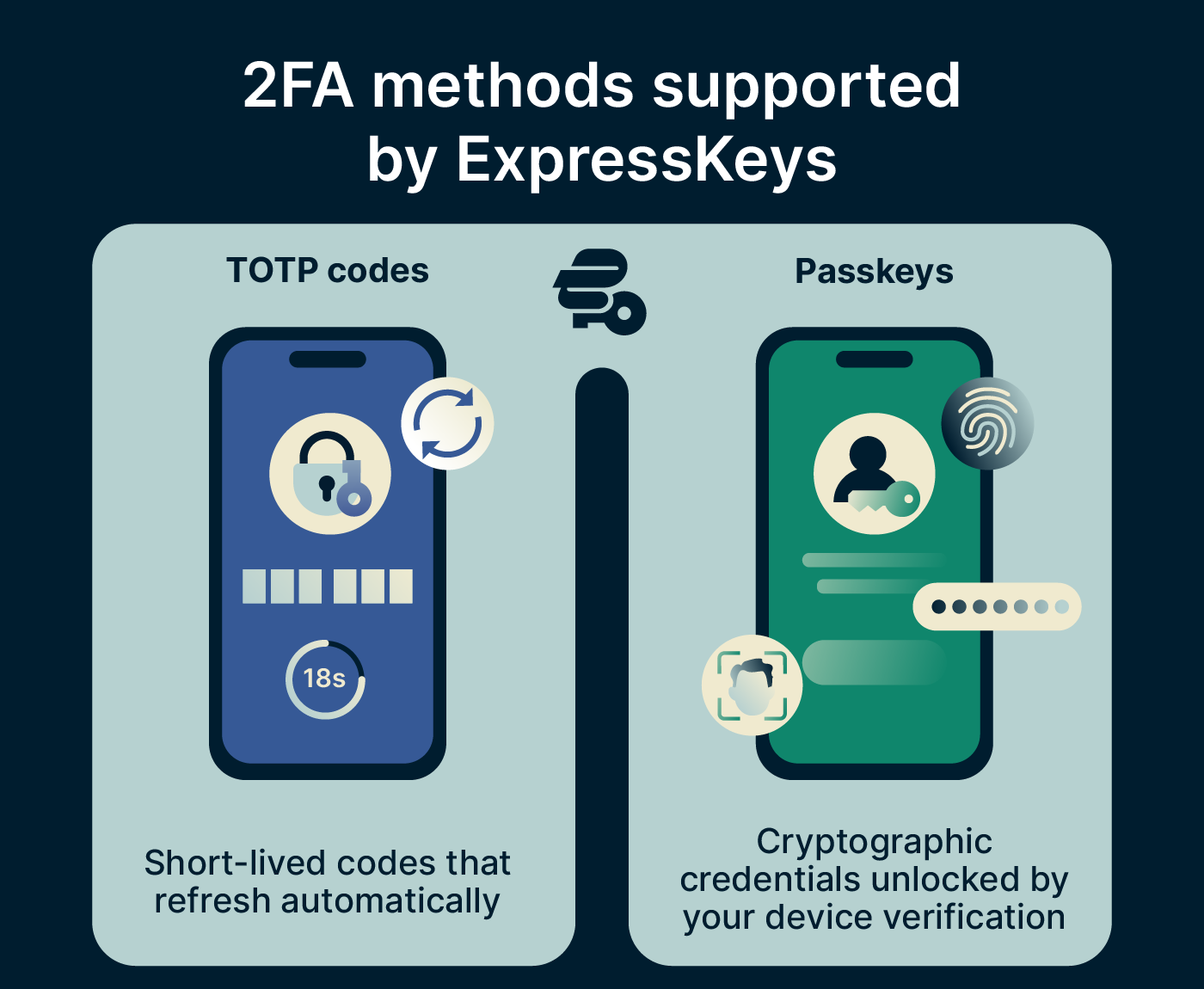
For compatible accounts, ExpressKeys supports two authentication approaches: time-based one-time password codes and passkeys.
Time-based one-time password (TOTP) codes
ExpressKeys’ built-in authenticator generates TOTP codes, which are short-lived verification codes that automatically refresh after 30 seconds. When a service asks for an authenticator code during login, you can use the code generated by ExpressKeys as your second factor.
TOTP codes are generated from a secret shared between the service and ExpressKeys when you first set up 2FA. Because the code changes frequently, anyone who sees, intercepts, or otherwise obtains a code has only a very short window in which they could use it to compromise your account.
Passkeys
ExpressKeys can also create and store passkeys for services that support them. Rather than relying on a password and a separate verification code, a passkey uses cryptographic credentials to authenticate you.
While passkeys aren’t traditional 2FA, they can satisfy 2FA requirements because they combine something you have, such as your device or a passkey stored in a password manager, with a local verification method, such as your fingerprint, face, or device PIN.
Passkeys are also resistant to phishing, because a passkey is tied to the website or app it was created for, so it can’t be used on a fraudulent login page.
When you save a passkey in ExpressKeys, it can sync across your devices with your other saved credentials, so you can use it wherever you’re signed into ExpressKeys.
How to set up 2FA with ExpressKeys
It’s simple to add 2FA to your accounts with ExpressKeys. Here are the steps you need to follow.
Sign up for ExpressKeys and download the app
ExpressKeys is available as a standalone subscription or as part of ExpressVPN’s Advanced and Express Pro plans. Download and set up ExpressKeys, then sign in and create your vault password.
For detailed instructions see our setup guides for Android, iOS, macOS, and the browser extension.
Enable 2FA on the website or app
Before ExpressKeys can generate codes for an account, you need to enable authenticator-app 2FA on that service.
The exact steps vary by the service, but you’ll usually find the option under Security, Sign-in, Two-factor authentication, or something similar in your account settings. Choose the option to use an authenticator app. The service should then display a QR code, setup key, or both. Keep this screen open while you add the account to ExpressKeys, because you’ll need the QR code or setup key to complete the setup.
Set up 2FA for an existing login in your ExpressKeys vault
If the account is already saved in ExpressKeys, follow the steps below. The screenshots in this example show the ExpressKeys browser extension in Google Chrome. The steps and interface may vary slightly depending on your browser and operating system.
-
Open ExpressKeys and select the login.
![The ExpressKeys browser extension interface showing some saved logins]()
-
Select Setup Now under 2FA verification code.
![The ExpressKeys browser extension interface wi the 2FA setup option highlighted]()
-
Enter the setup key and select Confirm. On Android or iOS, you can select Scan QR code instead.
![The ExpressKeys browser extension interface showing the 2FA setup screen]()
-
Enter the verification code generated by ExpressKeys on the website or in the app to complete 2FA setup.
![The ExpressKeys browser extension interface showing how the 2FA verification code screen]()
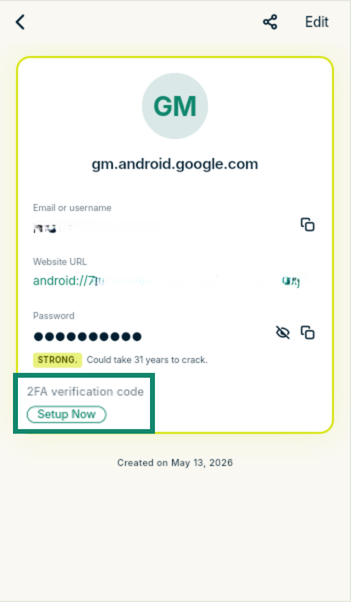
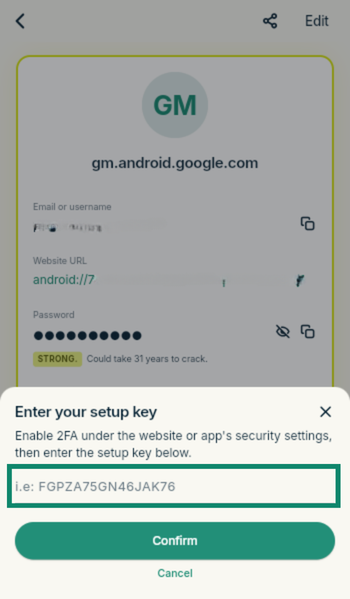
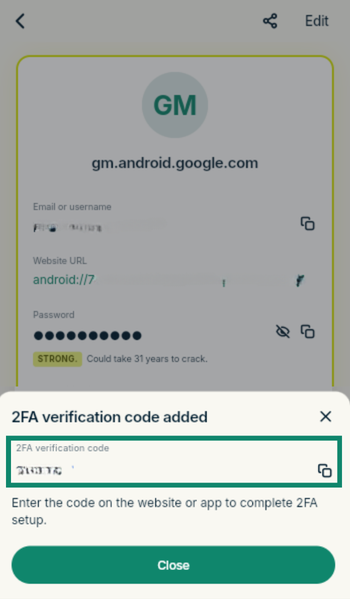
See the full ExpressKeys 2FA setup guide for more detailed instructions.
Set up 2FA while adding a new login to your ExpressKeys vault
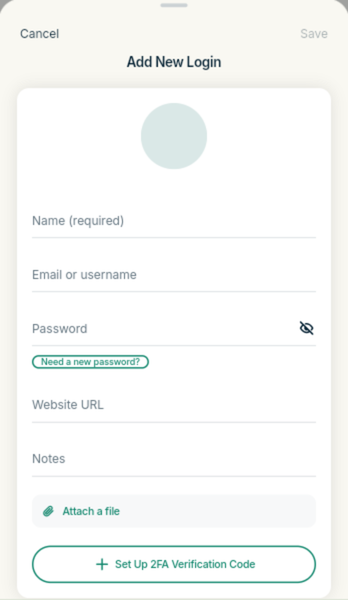
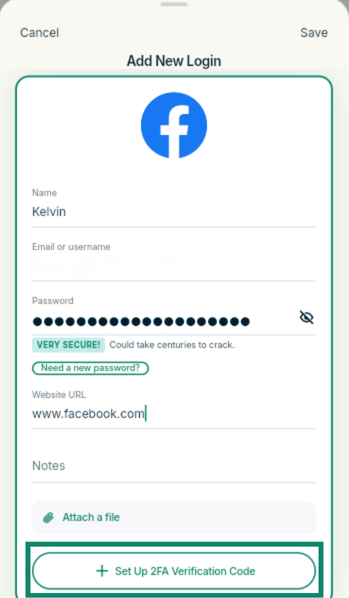
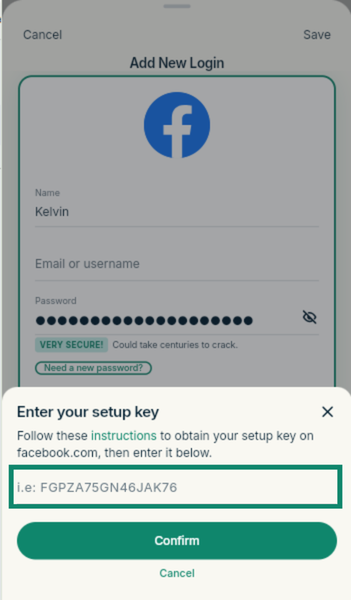
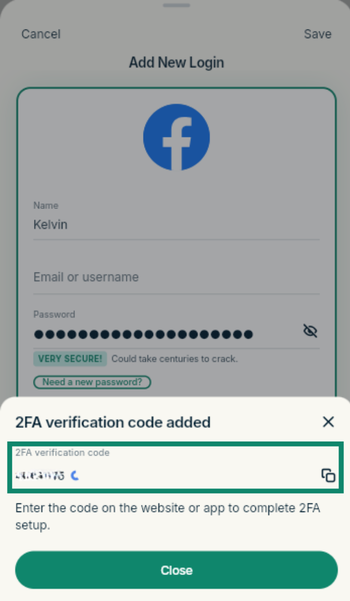
You can also configure 2FA when adding a login:
-
Open ExpressKeys, select the + icon, then select Logins.
![The ExpressKeys browser extension interface with the "Add new item" button highlighted]()
-
Enter the account’s login details.
![The ExpressKeys browser extension interface showing the "Add New Login" screen]()
-
Select Set Up 2FA Verification Code.
![The ExpressKeys browser extension interface with the "Set Up 2FA Verification Code" button highlighted]()
-
Enter the setup key and select Confirm, or scan the QR code on Android or iOS.
![The ExpressKeys browser extension interface showing how to connect an account to ExpressKey's authenticator]()
-
Enter the code generated by ExpressKeys on the website or app when prompted, then finish saving the login.
![The ExpressKeys browser extension interface showing how to verify the authenticator and complete 2FA setup]()
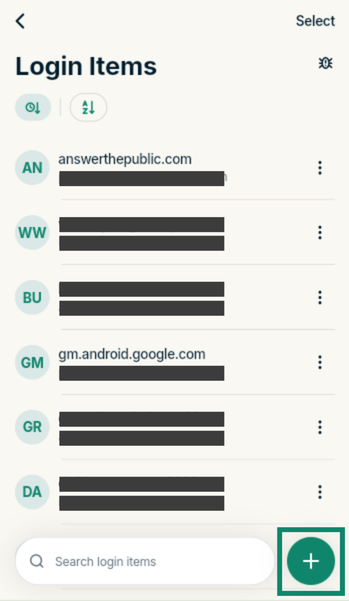
Find and use your 2FA codes
When you sign into an account with 2FA enabled, ExpressKeys can autofill the verification code. Autofill is enabled by default in the browser extension, but on mobile you need to enable it in your settings. See our autofill guide for instructions.
Alternatively, you can find and copy the code manually from ExpressKeys.
To find a code, open ExpressKeys and select Authenticator.
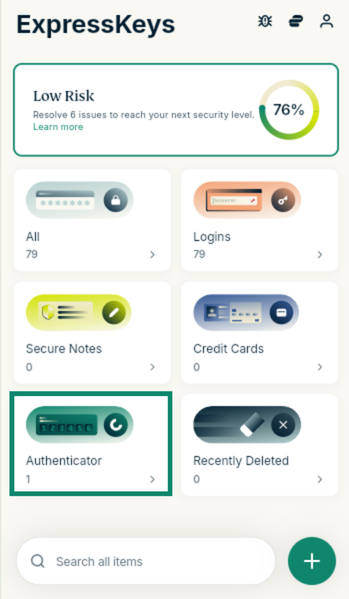
The Authenticator tab displays the accounts for which you’ve saved TOTP codes, along with the current code for each account. Find the account you’re signing into and use the displayed code when prompted.
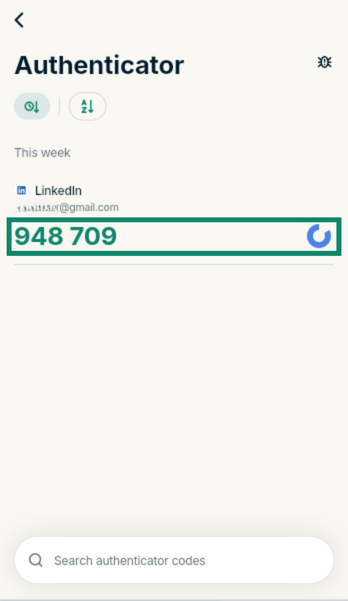
Each code is valid for 30 seconds before ExpressKeys automatically generates a new one. The countdown indicator beside the code shows how much time remains before it refreshes.
Add passkeys to your accounts in ExpressKeys
For websites and apps that support passkeys, ExpressKeys can create and save the passkey directly to your vault. Make sure autofill is enabled first.
For an existing account, open the service’s account settings and look for the option to add or create a passkey. If you’re creating a new account, the service may offer to create a passkey during signup. When prompted, choose ExpressKeys to create and save it.
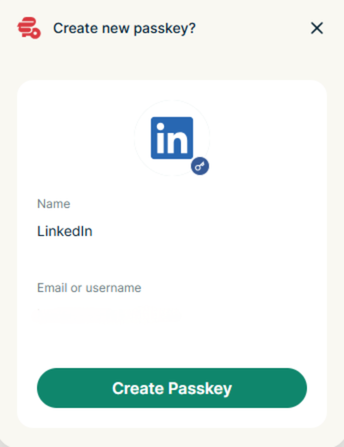
On Android or iOS, select Add Passkey, then authenticate with your vault password or biometrics. In the browser extension, select Create Passkey when prompted.
The saved passkey will then appear under Logins in ExpressKeys and can be used to authenticate you the next time you sign into that account.
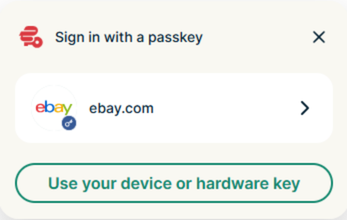
For detailed instructions on generating, storing, and managing passkeys, see our full passkey guide.
Check which of your accounts has 2FA enabled with ExpressKeys Password Health
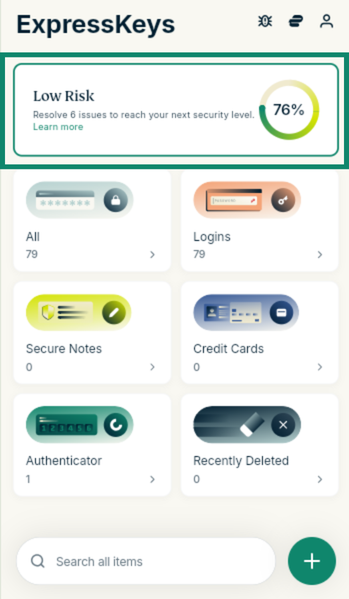
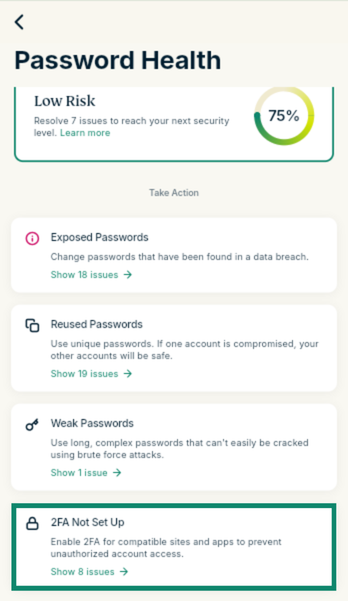
ExpressKeys’ Password Health tool gives you an overview of the security of the logins saved in your vault. As well as identifying issues like weak or reused passwords, it shows which saved accounts have 2FA set up in ExpressKeys and which don’t.
To view which accounts have 2FA enabled:
-
Open ExpressKeys and go to Password Health by clicking on the Password Health widget at the top of the home screen.
![The ExpressKeys browser extension interface with the Password Health widget highlighted]()
-
Look for the 2FA section to review your accounts.
![The ExpressKeys browser extension interface showing the password health screen, with the "2FA Not Set Up" option highlighted]()
-
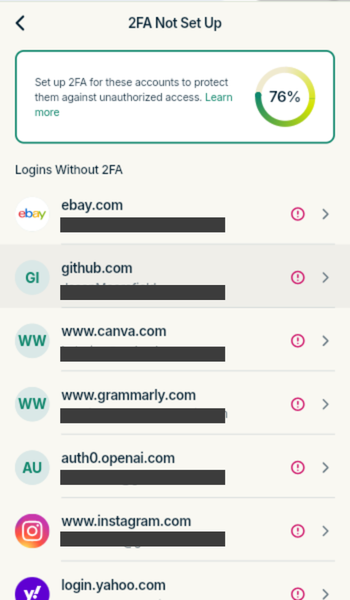
ExpressKeys displays a list of saved logins for compatible services that don’t have 2FA set up.
![The ExpressKeys browser extension interface showing accounts that don't have 2FA set up]()
-
Select the login you want to secure. From there, you can follow the prompts to add the account’s 2FA verification code to ExpressKeys. You may also need to enable authenticator-based 2FA in the account’s security settings if you haven’t already done so.
What about accounts that don’t offer app-based 2FA?
If an account doesn’t support authenticator-app 2FA, ExpressKeys can still help you protect it with a strong, unique password. Its password generator can create passwords using a customizable combination of letters, numbers, and symbols, and store them securely so you don’t have to create or remember them yourself.
Whether you’re creating a new account or changing the password on an existing one, use ExpressKeys to generate a strong password when prompted, then save the login to your vault. You can customize the password by adjusting options such as its length and the types of characters it contains. Once saved, ExpressKeys can autofill the password when you sign in.
If the service supports another form of 2FA, such as SMS or email codes, you can also enable that separately through the service’s security settings.
Why trust ExpressKeys with your credentials?
Storing passwords and 2FA codes together is convenient, but it also makes the security of your password manager especially important. ExpressKeys is designed to protect your vault at several levels, from how your data is encrypted to how access is controlled on your devices. This includes:
-
Zero-knowledge encryption: ExpressKeys encrypts the contents of your vault on your device before the data is stored or synced. Your vault password and the keys needed to decrypt your data aren’t available to ExpressVPN, so ExpressVPN can’t see the passwords, 2FA setup keys, or other credentials stored in your vault.
-
Device-level protection: Access to ExpressKeys is protected by your vault password. On supported devices, you can also use biometric authentication, such as your fingerprint or face, to unlock your vault. ExpressKeys automatically locks after a period of inactivity, helping prevent someone from accessing an unattended device and opening your vault.
-
Verification for new devices: When you set up ExpressKeys on a new device, you need to verify that device before it can access your vault. This adds another barrier against someone gaining access with your account credentials alone.
-
Independent security review: ExpressKeys underwent a security assessment by Cure53 in 2026, covering its architecture and Android and iOS applications. The assessment included penetration testing, source-code auditing, and a design and cryptographic review.
Want to make two-factor authentication easier to manage?
ExpressKeys combines a built-in authenticator with a secure password manager, letting you generate 2FA codes, store unique passwords, and manage passkeys for supported accounts, all in one place.
Secure your accounts with ExpressKeys
Standalone ExpressKeys subscriptions include a free trial for new users.
FAQ
How do I know if a service supports 2FA?
What happens if I lose access to my second factor?
If you store your authenticator credentials in ExpressKeys, they can sync across your ExpressKeys devices, so you can access them from another device if you lose or replace the device you normally use for 2FA.