How to configure Firefox privacy settings with ExpressVPN



ExpressVPN encrypts your internet traffic and masks your public IP address, but some privacy settings still depend on Firefox, including how it handles trackers, location requests, and Domain Name System (DNS) lookups.
A few targeted settings can help you get more from both tools. The ExpressVPN Firefox extension can block Web Real-Time Communication (WebRTC) leaks and spoof your location, while Firefox’s built-in tracking protection helps limit browser-based tracking. You can also adjust DNS over HTTPS (DoH) so Firefox uses ExpressVPN’s DNS servers when you’re connected.
Which Firefox privacy settings should you use with ExpressVPN?
Each Firefox and ExpressVPN setting addresses a different aspect of browsing privacy. ExpressVPN protects your internet connection, while Firefox controls how the browser interacts with websites and handles tracking.
| Firefox setting | What to do when using ExpressVPN | Why it matters |
|---|---|---|
| Enhanced Tracking Protection | Keep it on | ExpressVPN doesn’t block cookies and fingerprinting scripts. Firefox blocks these trackers inside the browser. |
| WebRTC | Enable Block WebRTC in the ExpressVPN Firefox extension | Helps prevent WebRTC connections from exposing your IP address |
| Location permissions | Only allow access to sites that need it | Stops websites from receiving browser-provided location information unnecessarily |
| HTML5 geolocation | Keep Spoof your location enabled in the ExpressVPN extension | Replaces your physical location with an ExpressVPN server location on most sites that use HTML5 geolocation.
ExpressVPN doesn’t stop a website from requesting location data through your browser or remove permissions you’ve granted. |
| DoH | Turn off if you want ExpressVPN to handle DNS lookups | Prevents Firefox from sending DNS queries to its separately configured DoH resolver |
These settings complement ExpressVPN. A VPN won’t stop a website from identifying you through an account you’ve signed in to, and browser privacy settings don’t encrypt your entire internet connection.
How to use ExpressVPN’s Firefox extension
ExpressVPN’s Firefox extension has two modes:
-
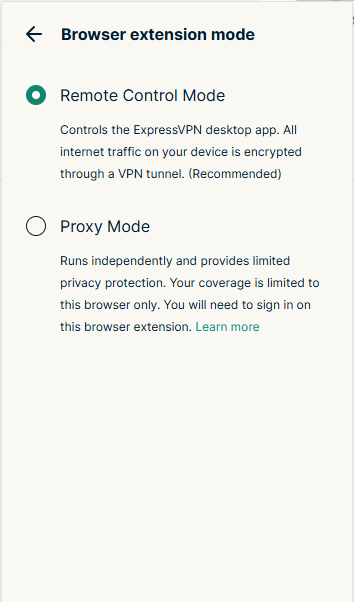
Remote Control Mode: Controls the ExpressVPN app for Windows, Mac, or Linux, so all your device’s traffic goes through the VPN. You need to connect to the app for this setting to work.
-
Proxy Mode: Runs on its own, without the desktop app, and encrypts only Firefox traffic. It provides limited protection, as all other apps stay outside the VPN. Smart Routing, which lets you control how the extension connects to specific sites, only works in this mode.
If you have the desktop app installed and want device-wide protection, Remote Control Mode is generally the appropriate choice. Proxy Mode is useful when you specifically want browser-only protection. To switch modes, open the extension, select the Menu icon, then Settings > Browser extension mode, and pick a mode.
How to prevent IP and location leaks in Firefox
ExpressVPN’s Firefox extension includes WebRTC and HTML5 geolocation controls to help you prevent IP and location leaks without unnecessarily disabling useful browser functions.
Enable WebRTC protection
WebRTC is the browser technology behind voice and video calls. It can expose your IP address when its connections don’t follow the same route as the rest of your traffic. ExpressVPN’s Block WebRTC setting obscures your IP address from WebRTC leaks and keeps media on the same network path as your regular web traffic.
To turn it on:
- Select the ExpressVPN icon in the Firefox toolbar, click the menu icon (three stacked horizontal lines), then select Privacy & Security.
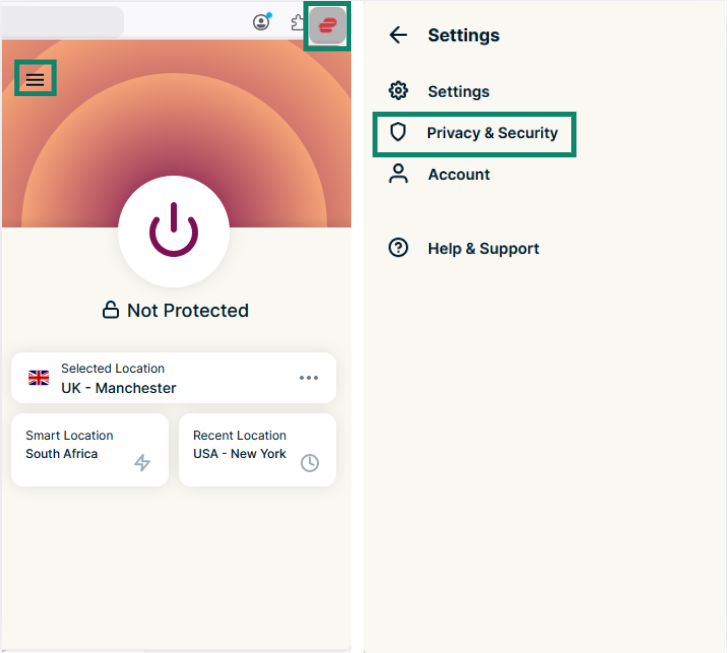
- Turn on Block WebRTC.
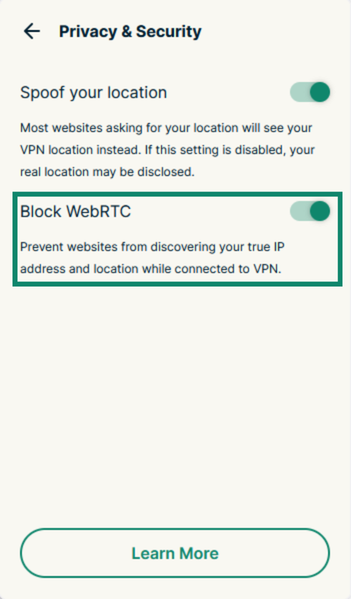
The full steps are in our guide to using the browser extension.
With this setting enabled, you generally don’t need to disable WebRTC in Firefox. Firefox’s only built-in way to control WebRTC is by setting media.peerconnection.enabled to false in about:config. This disables WebRTC for every site, including those that rely on it for calls.
Manage Firefox’s location permissions
Connecting to ExpressVPN doesn’t stop a website from asking Firefox for your location. If you allow a request, Firefox can still use GPS and nearby Wi-Fi networks to estimate your location. The VPN doesn’t change what your device reports.
To review which sites can see your location in Firefox on desktop:
- Open Firefox’s menu and select Settings.
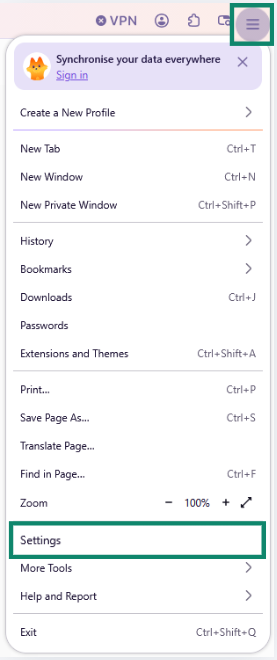
- Scroll to Permissions and data and click Location.
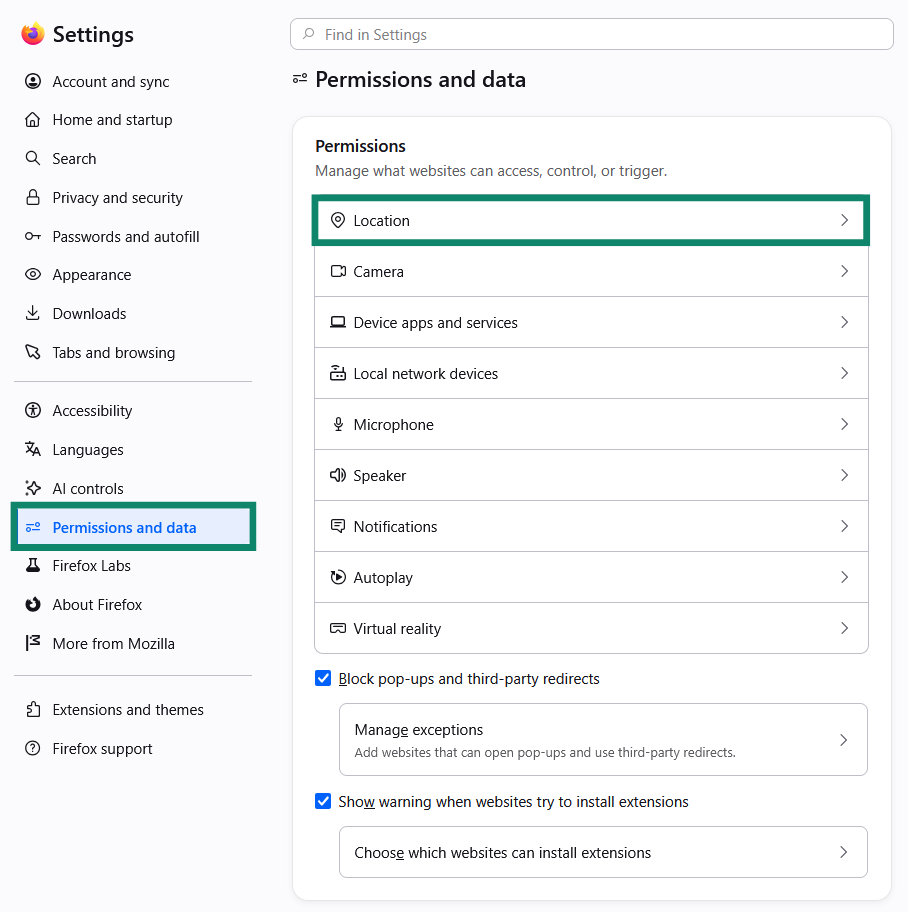
- Review the listed websites and remove sites that no longer need your location.
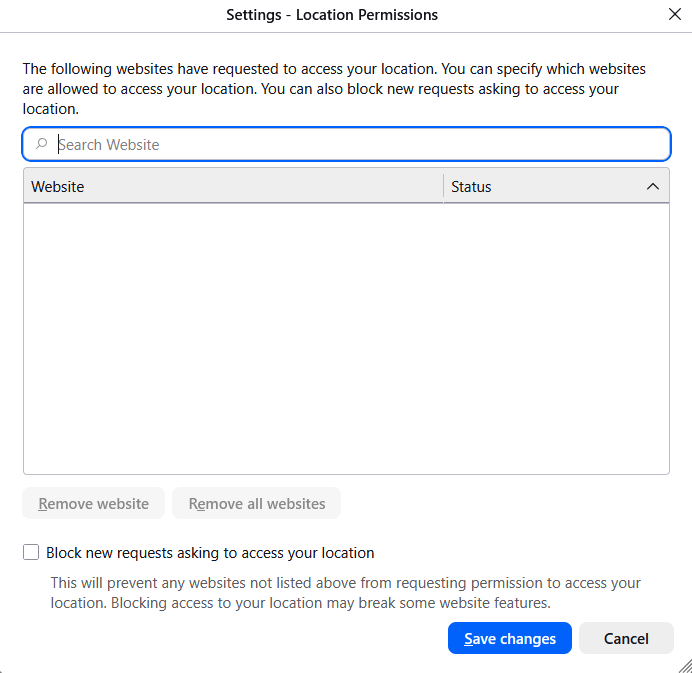
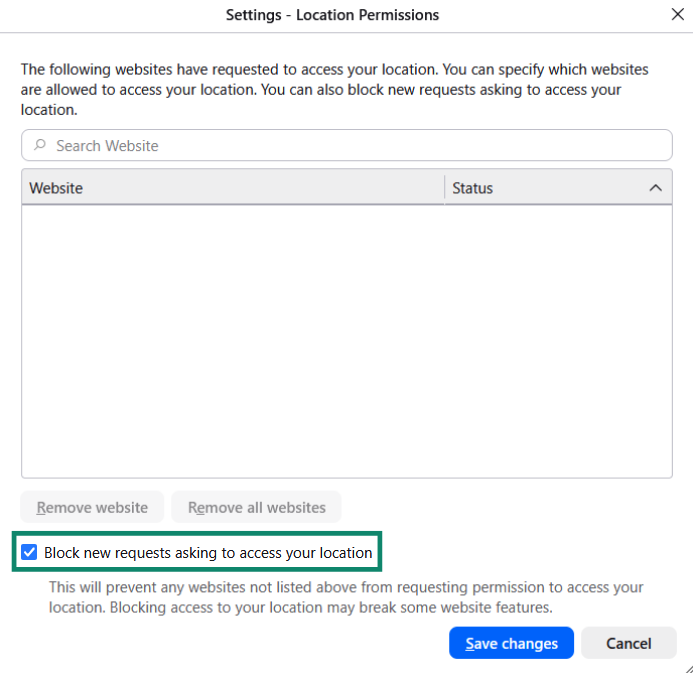
- You can also select Block new requests asking to access your location, then Save Changes. This stops new location requests, but it doesn’t automatically remove permissions you’ve already granted.
Spoof your location
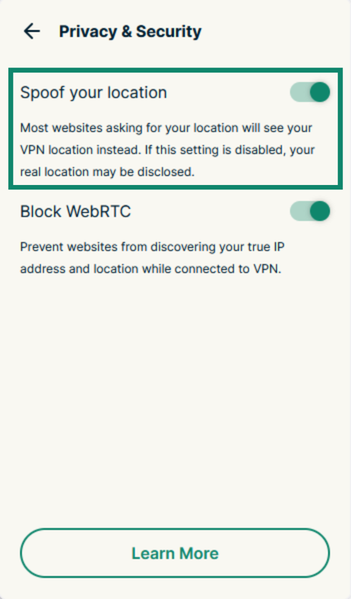
Blocking location requests can prevent some sites, such as map apps like Google Maps, from working as expected. The alternative is to use ExpressVPN’s Spoof my location setting. When enabled, it replaces your IP address location with the VPN server’s when a website requests it through HTML5 geolocation. It's enabled by default and works on most, but not all, websites.
If a page won’t load properly with it on, you can turn it off in Privacy & Security in the ExpressVPN extension. Sites that use HTML5 geolocation may still see your location even while you’re connected to ExpressVPN.
See our guide to spoofing HTML5 geolocation using the ExpressVPN Firefox extension for more information.
Should you enable Firefox’s DNS over HTTPS with ExpressVPN?
Turn off Firefox’s DoH setting while you use ExpressVPN, so your DNS lookups go to its servers instead of one of Firefox’s providers. DNS translates a website’s name into the IP address your device uses to connect, and Firefox’s DoH encrypts those lookups between the browser and the DNS resolver it uses.
When you’re connected, your device normally uses ExpressVPN’s DNS servers for those lookups. However, if DoH is enabled, Firefox can bypass those servers and send queries to its separately configured resolver. The queries remain encrypted in transit, but that third-party DNS resolver can then see which domains you look up.
Firefox’s Default Protection can automatically disable DoH in some circumstances, including when it detects a VPN. Other protection levels can keep DoH on with your selected provider. Setting DoH to Off means you don’t have to rely on that detection.
To turn it off, open Settings > Privacy & Security, scroll to DNS over HTTPS, click Advanced settings, and select Off. Our guide to disabling DoH covers the steps.
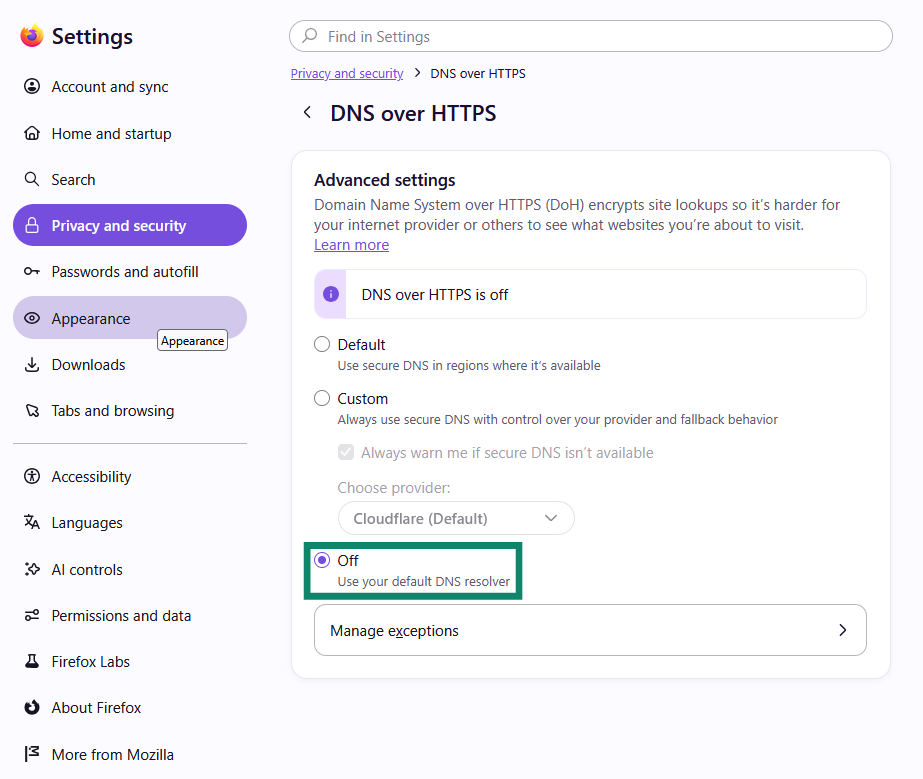
This setting controls how Firefox resolves domain names; it doesn’t turn off encryption for your internet traffic. ExpressVPN continues to encrypt traffic through its VPN tunnel when connected.
Which Firefox tracking protections do you still need with ExpressVPN?
Keep Firefox’s Enhanced Tracking Protection (ETP) on while you’re connected because, while ExpressVPN masks your IP address, it doesn’t stop other ways websites can recognize or track you.
For example, a website may use cookies to remember previous visits or combine information about your browser, operating system, screen settings, and fonts to create a browser fingerprint. If you sign into an account, the service can also link your activity to that account, even if you use a VPN.
With ETP’s default Standard setting, Firefox blocks cross-site tracking cookies, social media trackers, cryptominers, and fingerprinters on all sites. Firefox also uses Total Cookie Protection to isolate cookies by website, helping prevent them from being used to track you across sites.
ExpressVPN’s Advanced Protection feature adds another layer with Block trackers (available with Advanced and Express Pro plans). While you’re connected, it stops apps and websites on your device from connecting to tracker domains on ExpressVPN’s blocklists, which are built from open-source lists and updated weekly. It only blocks domains on those lists, so it adds to ETP rather than replacing it.
How to check whether Firefox is protected by ExpressVPN
After configuring Firefox and the ExpressVPN extension, run a few checks to confirm that your connection and browser settings are behaving as expected:
-
Confirm the VPN connectionThe extension’s icon turns green when you’re connected.
-
Check your public IP addressRun the IP Address Checker before and after connecting. The IP address should change to your VPN location.
-
Test for WebRTC leaksWith ExpressVPN connected, run the WebRTC Leak Test. If your real public IP address appears, turn on Block WebRTC and test again. Contact ExpressVPN Support if it still shows.
-
Check your DNS resolverConduct the DNS Leak Test. The results should show ExpressVPN’s DNS servers, not another provider’s. If another provider appears, check that Firefox’s DoH is set to Off.
If you get an unexpected result, check the corresponding Firefox or ExpressVPN setting and repeat the test.
Want stronger privacy in Firefox?
Use ExpressVPN to encrypt your internet traffic and mask your public IP address, with built-in Firefox extension features to help protect against WebRTC leaks and location exposure.
Protect your Firefox browsing with ExpressVPN
Try it risk-free with our 30-day money-back guarantee for new users.