 Celebrate with up to 80% off
How to set up port forwarding on PS5 for online gaming


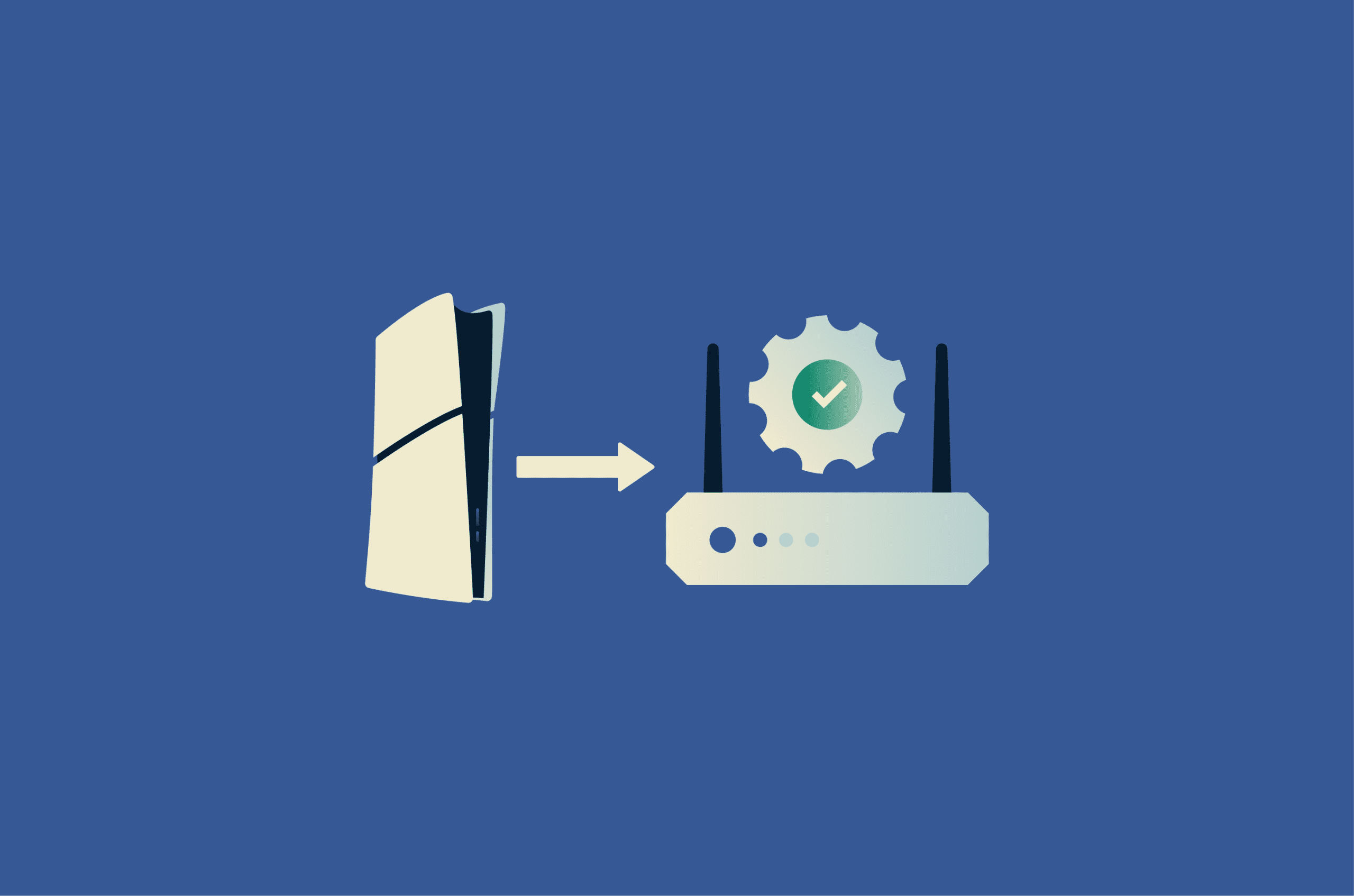
If you’re having trouble joining multiplayer games, using voice chat, or seeing a strict Network Address Translation (NAT) type on your PS5, your router could be restricting certain incoming connections. This can limit how your console connects with other players.
Understanding port forwarding for PS5
Port forwarding is the process of configuring your router to redirect specific incoming internet traffic directly to your console. This can help your PS5 accept incoming connections with other players and join multiplayer sessions by reducing network restrictions caused by your router.
NAT is used by routers to manage how devices on a home network communicate with the internet. Because it controls how incoming connections are handled, it can limit how your console connects to other players.
Port forwarding works by creating fixed rules to allow specific connections through.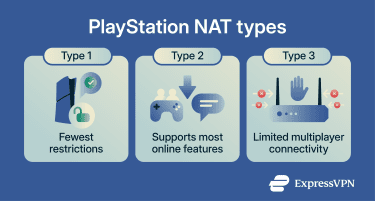
There are three NAT types on PS5:
- Type 1: Your console is connected directly to the internet, without typical router protections. This allows the fewest restrictions when connecting with other players, but can expose your device to more network traffic.
- Type 2: Your console is connected to the internet through your router. This is a commonly preferred setup, as it supports most online features while maintaining standard network protections.
- Type 3: Your console is connected to the internet through a router or network that restricts incoming connections. This can limit how your console connects with other players and may cause issues when joining multiplayer games or using voice chat.
Related read: How to change NAT type on PS5
It’s worth noting that port forwarding doesn’t directly affect gameplay performance, such as lag, ping, or in-game responsiveness. These are influenced by factors like internet speed, network stability, and overall connection quality.
It’s also important to understand that other factors can affect how your PS5 connects to other players. If your internet service provider (ISP) uses Carrier-Grade NAT (CGNAT), or if you’re on a restricted network, such as at school or work, port forwarding may not work as expected or may have no effect.
Is port forwarding safe for PS5?
When configured correctly, port forwarding typically introduces limited additional risk. However, the following considerations still apply:
- Misconfiguration: Configuration errors can result in the wrong ports being opened or rules being applied to the wrong device, which may reduce overall network security.
- Exposure: Port forwarding allows specific external connections to reach your console, which can slightly increase exposure to unsolicited traffic.
Before you start port forwarding
Before you begin, check your current NAT type to understand your network setup:
- Go to Settings and select Network.
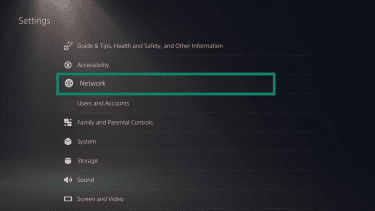
- Click Connection Status and then select Test Internet Connection. Here, you’ll see your NAT type.
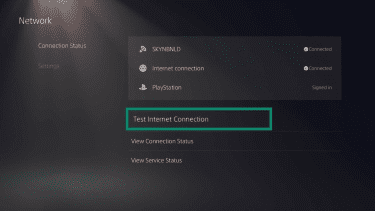
You’ll also need to do the following to prepare your network for port forwarding:
- Find your console’s IP address.
- Assign a reserved or static IP.
How to find your PS5 IP address
You can find your PS5’s IP address in the console settings:
- From the PS5 home screen, select Settings, then Network.
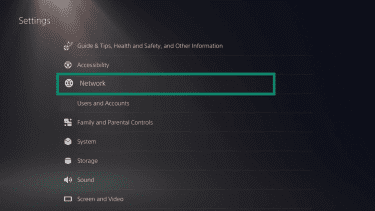
- Select View Connection Status.
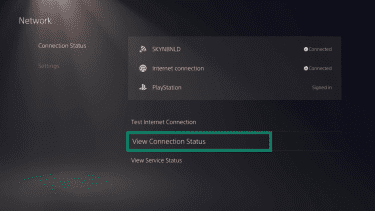
- You should then see your console’s network details, including its IP address.
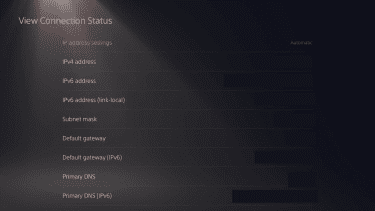
This screen also shows details, including the Media Access Control (MAC) address, subnet mask, default gateway, and DNS settings, which may be needed when assigning a static IP or configuring port forwarding.
How to reserve a static IP for PS5
If your console has a dynamic IP address, port forwarding may stop working if the IP address changes. As such, assigning a static IP helps ensure port forwarding works as expected.
The exact steps vary depending on your router model, so the steps below are intended as a general guideline:
- Open a web browser, go to your router's admin page, and log into your account.
- Look for a section labeled DHCP or LAN Settings.
- Locate a setting such as DHCP Reservation, IP Binding, or Manual IP Assignment.
- Enter your console’s MAC address and the IP address you want to assign.
- Save your changes and restart your devices.
Alternatively, you can set a static IP directly on the PS5 through its network settings instead of using your router. Note that this requires manually entering all network details, which increases the risk of misconfiguration.
Common ports to forward for PS5
PlayStation Support recommends trying the following ports when troubleshooting certain PS5 connection issues:
- Transmission Control Protocol (TCP):80, 443, 3478, 3479, and 3480
- User Datagram Protocol (UDP): 3478, 3479, and 49152 to 65535
It’s worth noting that some online games may require different or additional ports specific to that title.
Related read: TCP vs UDP: Understanding the key differences
How to set up port forwarding on your PS5
The process for setting up port forwarding on a PS5 varies by router, and access may be limited depending on your router or ISP setup. Refer to your router’s documentation for exact instructions. The steps below provide a general guideline:
- Ensure your PS5 has a static or reserved IP address.
- Open a web browser and log into your router’s admin interface.
- Locate the port forwarding settings (this may be labeled differently depending on your router).
- Enter your PS5’s IP address.
- Create port-forwarding rules for the ports you want to forward.
- Save your changes, then restart your router and console.
Test your connection after port forwarding
Once you’ve set up port forwarding, you can run a few checks to see if it’s working:
- Turn your console on and confirm it can connect to PlayStation Network.
- Check your NAT type by going to Settings > Network > Connection Status > Test Internet Connection.
- Join an online game or start a voice chat session to test connectivity with other players.
Alternatives to port forwarding
Port forwarding isn’t the only way to address connectivity issues or change your PS5’s NAT type. Other options include:
- Universal Plug and Play (UPnP): Allows devices on your network to automatically request that ports be opened. Ports are opened and closed as needed, which removes the need for manual setup but offers less control over which ports are opened.
- Demilitarized zone (DMZ): Forwards all incoming traffic to a specific device, such as a PlayStation 5. This can help resolve connectivity issues in some cases, but it exposes the device to a broader range of incoming connections and does not bypass NAT entirely.
Troubleshooting common issues
If you encounter issues after setting up port forwarding, the steps below may help:
- Verify your console’s IP: Ensure a static or reserved IP is assigned and matches your router’s port-forwarding rules.
- Check port numbers: Ensure the ports you configured are entered correctly, and none are missing.
- Restart your devices: Restart both your router and the console, or power-cycle them by unplugging them, waiting 30–60 seconds, then plugging them back in.
- Switch to a wired connection: Use a wired (Ethernet) connection instead of Wi-Fi to improve connection stability.
If port forwarding still doesn’t work, your network setup may be a limiting factor. For example, some networks use multiple layers of routing (double NAT), or your ISP may use CGNAT, which can prevent port forwarding from working. In these cases, additional configuration or support from your ISP may be required.
FAQ
Does port forwarding help gaming?
What Network Address Translation (NAT) type is best for PS5?
How do I change my NAT type on PS5?
How do I troubleshoot port forwarding issues on PS5?
Should I use UPnP instead of port forwarding?