Lost Mode on iPhone: How to enable it and secure your device


Lost Mode is an Apple security feature that helps you protect and locate your device if it goes missing. When you turn it on, your phone locks, shows a custom message plus optional contact information, suspends Apple Pay payments and cards on applicable devices, and lets you track its location.
What you need to activate Lost Mode
You’ll need the following to activate Lost Mode:
- Apple Account sign in: You must sign in with your Apple Account (formerly Apple ID) on another device or at iCloud.com/find so you can manage your missing iPhone.
- Passcode: If your iPhone doesn’t already have a passcode, you’ll be asked to create one when you activate Lost Mode. This is different from your Apple account password, and it keeps others from unlocking your device.
- Contact info: Decide which contact details (phone number, message, email, etc.) you want displayed on your lock screen to make it easy for someone who finds your phone to return it.
Before you turn on Lost Mode
Lost Mode only works if certain settings are already turned on before losing your device. If you’ve already lost your device and didn’t have these settings enabled, you won’t be able to use Lost Mode or track your iPhone remotely. However, there are some alternative measures you can take.
If you’re still in possession of your device, taking a few steps now ensures you can lock, locate, and protect your iPhone immediately if it ever goes missing. Here’s what to do.
Check if Find My is enabled
Your iPhone must have the Find My feature turned on. Here’s how to check/enable it:
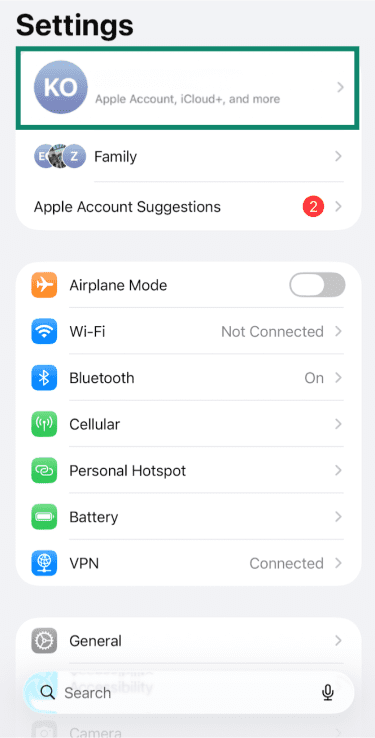
- Open the Settings app and tap on your Apple Account name at the top of the page.
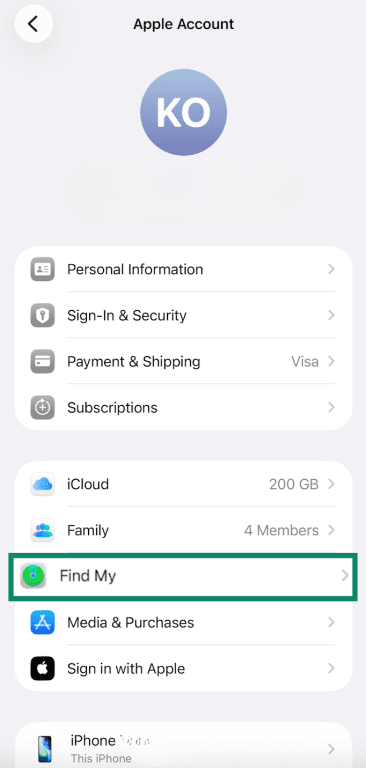
- Tap Find My.
- Tap Find My iPhone.
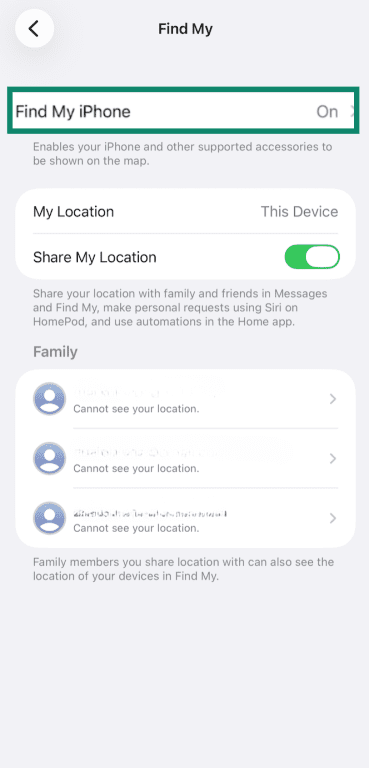
- Toggle Find My iPhone on. Note that you won’t be able to turn it back off if Stolen Device Protection is enabled.
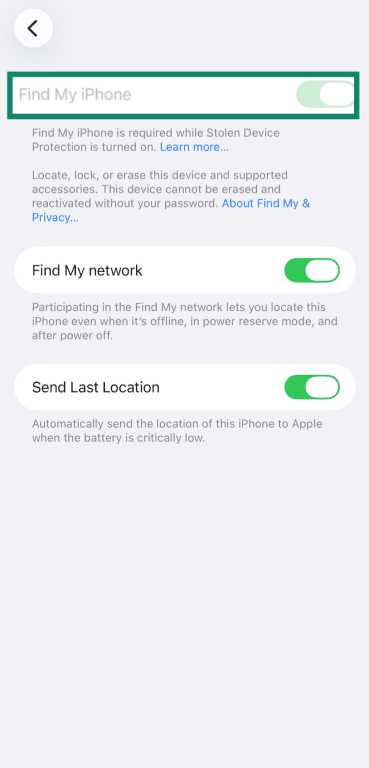
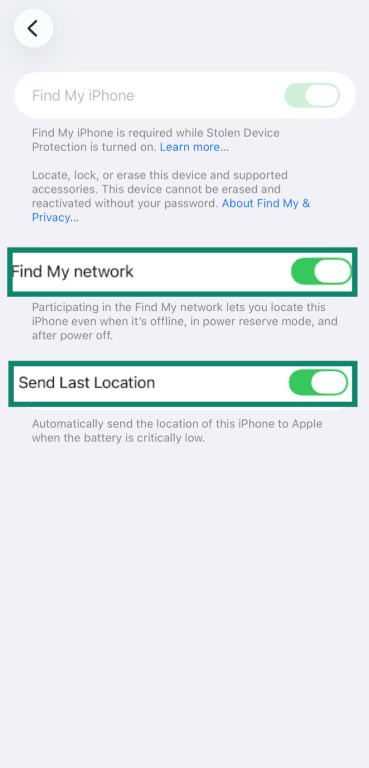
- You can also turn on Find My network to help locate your device even when it is offline and turn on Send Last Location so Apple saves the last known location if the battery is critically low.
How to turn on Lost Mode
You can activate Lost Mode from the Find My app if you have another Apple device or from a web browser using iCloud Find Devices.
Turn on Lost Mode using iCloud
You can activate Lost Mode from a web browser if you don’t have another Apple device handy:
- Go to iCloud.com/find and click on Sign In.
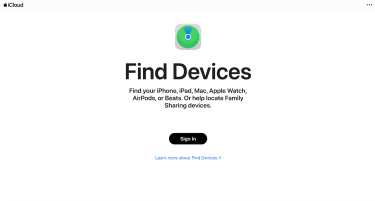
- Log in with your Apple Account.
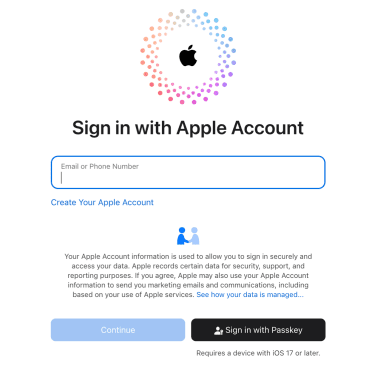
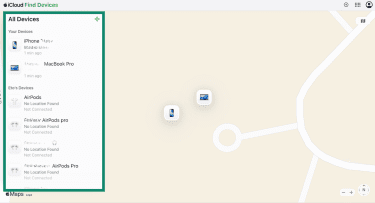
- Choose your missing iPhone from the list of devices on the left-hand side.
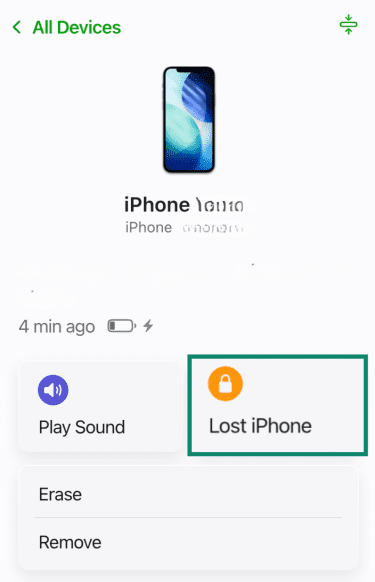
- Click on Lost iPhone.
- Click Next.
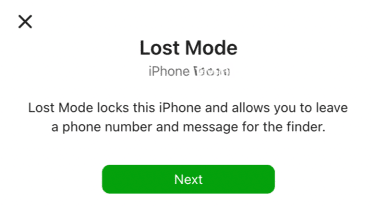
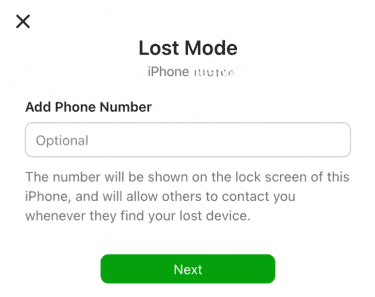
- If you want, you can add a contact number that’ll display on the iPhone’s lock screen, then click Next.
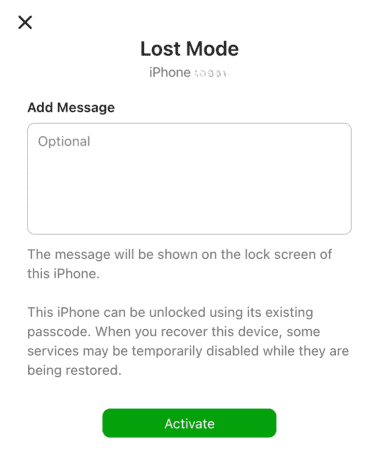
- Add a message (here you can include your email and other relevant details) and click Activate.
Activate Lost Mode in the Find My app
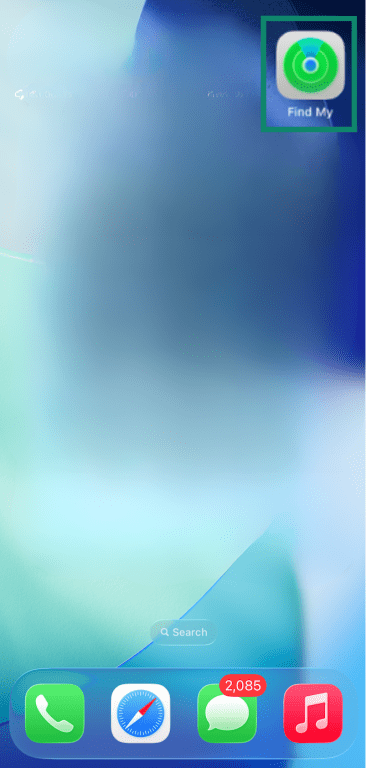
Here’s how to turn on Lost Mode using the Find My app on another Apple device:
- Sign in with your Apple Account on a trusted Apple device and open the Find My app.
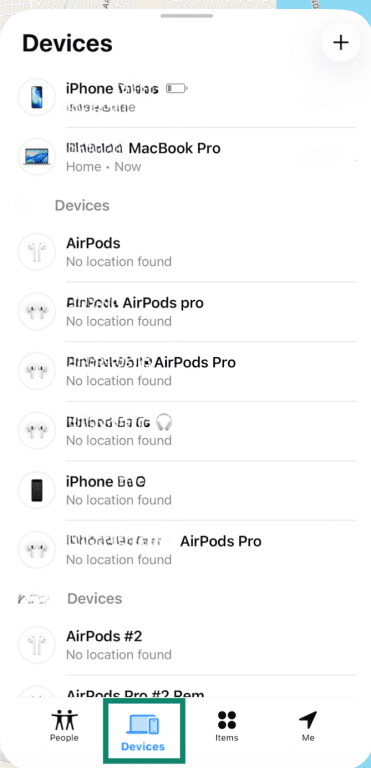
- Tap Devices at the bottom of the screen and select your missing iPhone.
- Under the Lost iPhone section, tap Lost Mode.
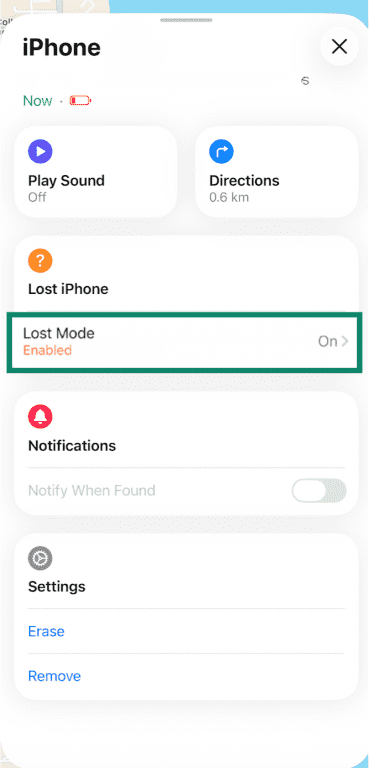
- Tap Continue.
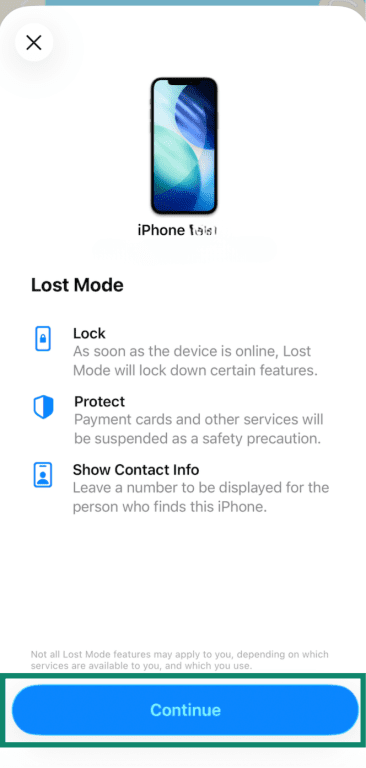
- If you want, you can fill in a contact number that’ll display on the iPhone’s lock screen, then tap Next.
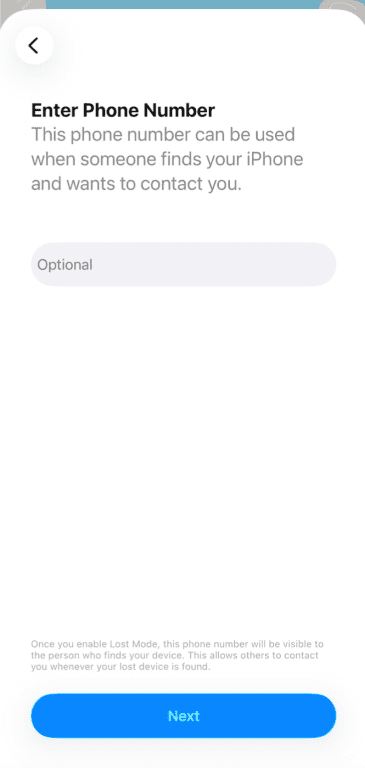
- Type a message and tap Next.
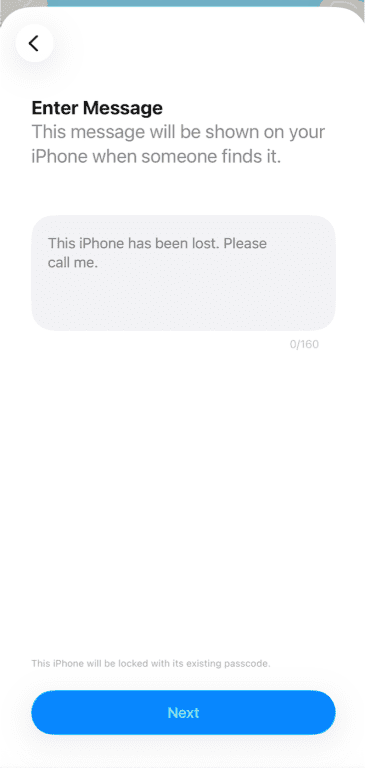
- If there’s no recent location of your iPhone, toggle on Notify When Found to get an email notification when the device comes back online.
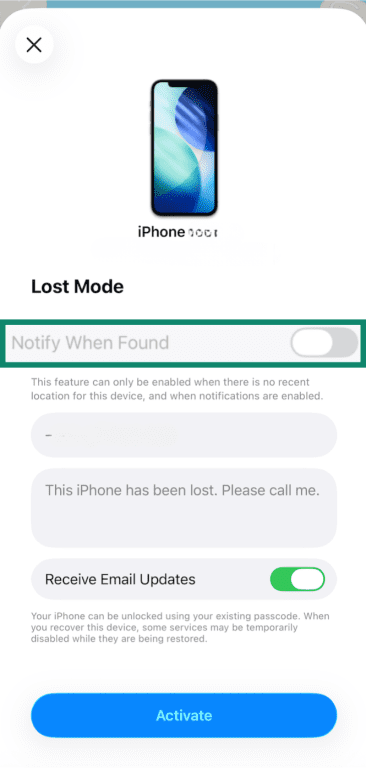
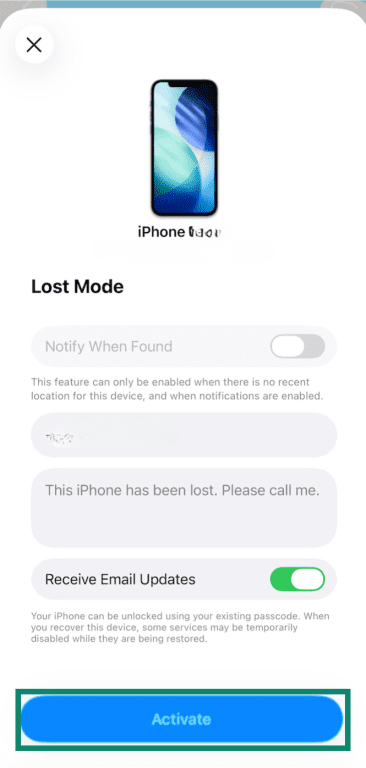
- Tap Activate to turn on Lost Mode for your iPhone.
What to do if the device is offline
If your missing iPhone isn’t connected to the internet when you enable Lost Mode, the request won’t take effect right away. Lost Mode will turn on automatically as soon as the iPhone reconnects to the internet.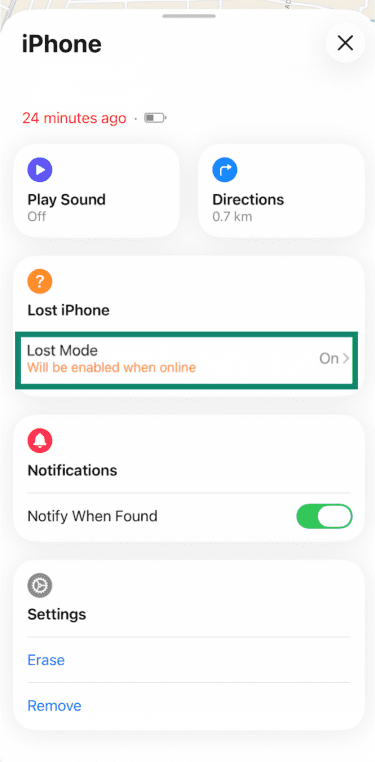
You’ll receive an email confirmation once the device comes back online.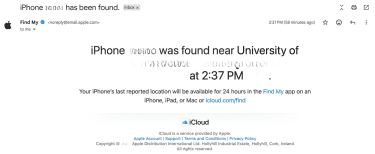
If you enabled the Find My network before your iPhone went missing, you may still be able to see its location even when it is offline. The Find My network uses nearby Apple devices to securely relay a device’s location, which can help you track your iPhone until it reconnects to the internet.
Can someone access my iPhone in Lost Mode?
No one can access your iPhone when it is in Lost Mode without the passcode (different from your Apple Account password). The device locks immediately, and only someone with the correct passcode can unlock it.
Lost Mode vs. Find My
Find My is a system that lets you locate and manage your Apple devices on a map, as well as stay connected with friends and family by sharing locations.
Lost Mode is one of the tools inside Find My that helps you secure a missing device and display a message for someone who finds it.
| Feature | Find My | Lost Mode |
| Main purpose | Helps you locate and manage your devices, plus track friends and family | Helps you lock and protect a missing device |
| Custom message on lock screen | No | Yes |
| Apple Pay protection | Doesn’t suspend cards | Suspends Apple Pay cards linked to the device |
| Notification alerts | Doesn’t stop alerts and notifications | Stops alerts and notifications; phone calls and FaceTime calls still go through |
How to find your iPhone
When your iPhone goes missing, you can view its location on a map and play a sound to help find it nearby, so long as Find My is enabled.
View location and get directions
Sign in with your Apple Account on a trusted Apple device and open the Find My app, or sign in to iCloud Find Devices to see your iPhone’s location on a map. If the device is online or has recently connected to the Find My network, its current or last known location appears so you know where to go.
You can tap Directions to open the Maps app and follow directions to your device’s location.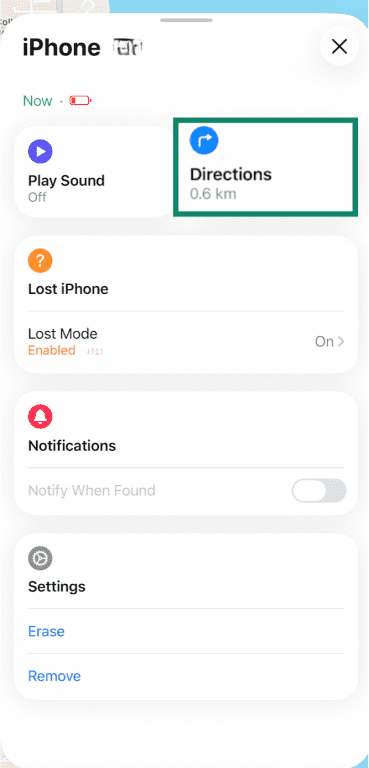
Play a sound to locate nearby
If you think your iPhone is nearby, you can play a sound from the Find My app or iCloud Find Devices by tapping Play Sound.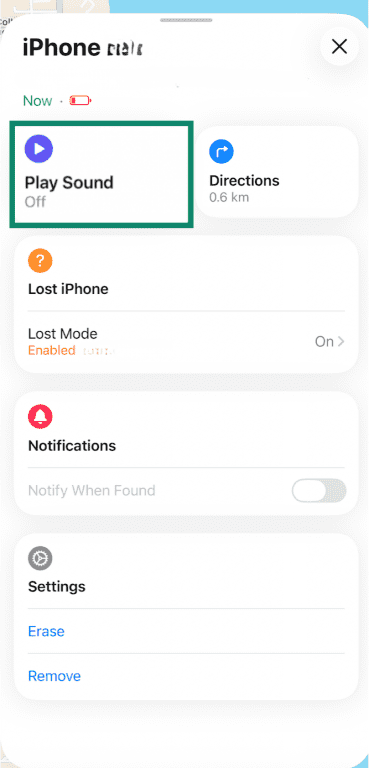
The sound plays even if the phone is muted. If the iPhone is offline when you prompt Apple to play a sound, it’ll play one automatically the next time the device connects to the internet.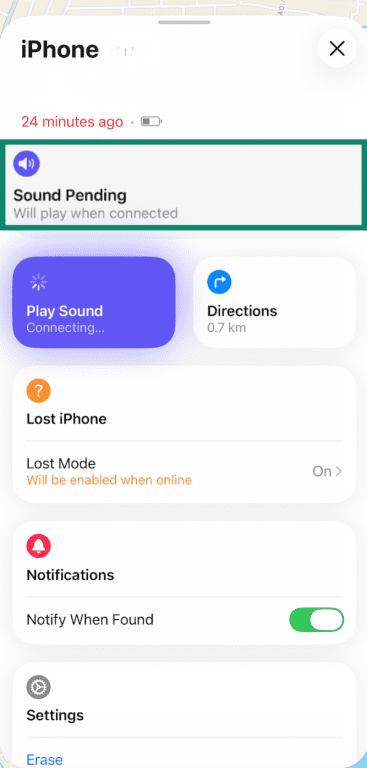
Get notified when it’s found
Find My also offers a Notify When Found option for your iPhone. If the device is offline or can’t show a current location, turning on this alert sends you a notification as soon as it shows up on the map again.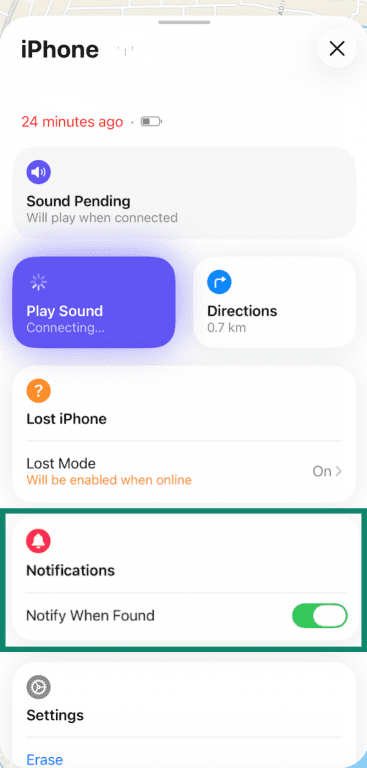
This lets you act quickly when your iPhone reconnects or its location is updated.
How to turn off Lost Mode on iPhone
When you find your iPhone, you can turn off Lost Mode directly on the iPhone itself, from your other Apple devices, or from a web browser.
Turn off Lost Mode on the iPhone
If you’ve found the iPhone, you can stop Lost Mode directly on the device:
- Wake the iPhone and enter the passcode you set when activating Lost Mode to unlock it.
- Once unlocked, Lost Mode turns off and the phone returns to normal.
Note: If you activated Stolen Device Protection before the phone went missing, you may need to authenticate with Face ID or Touch ID as well.
Turn off Lost Mode in Find My app
Even without your device, if you don't want Lost Mode enabled anymore, you can deactivate it using the Find My app on another Apple device:
- Sign in with your Apple Account on a trusted Apple device and open the Find My app.
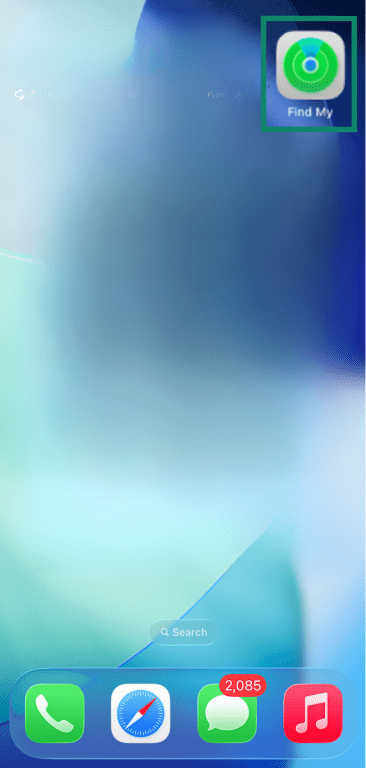
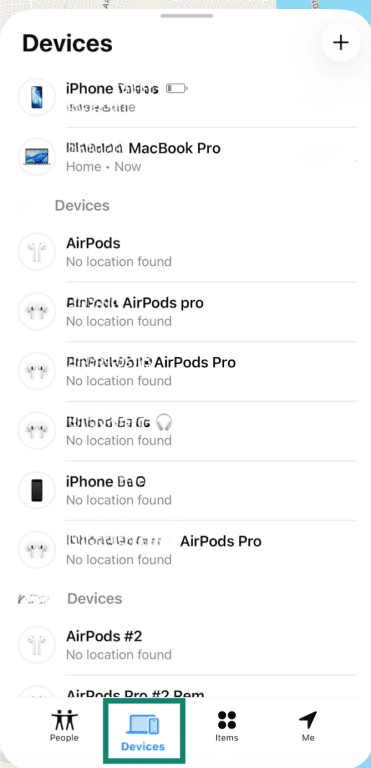
- Tap Devices, then select the iPhone you want to remove from Lost Mode.
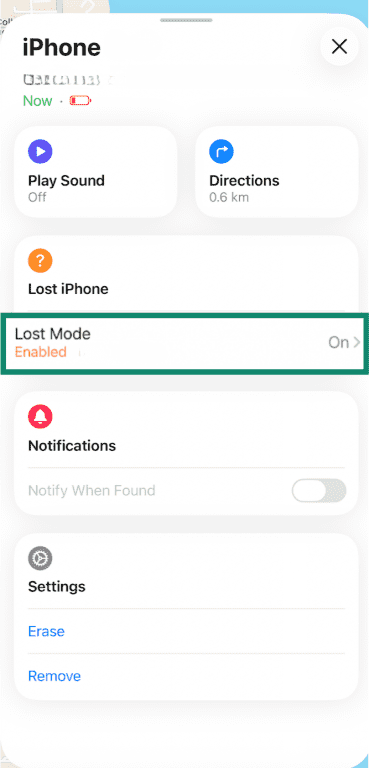
- Navigate to the Lost iPhone section and tap Lost Mode.
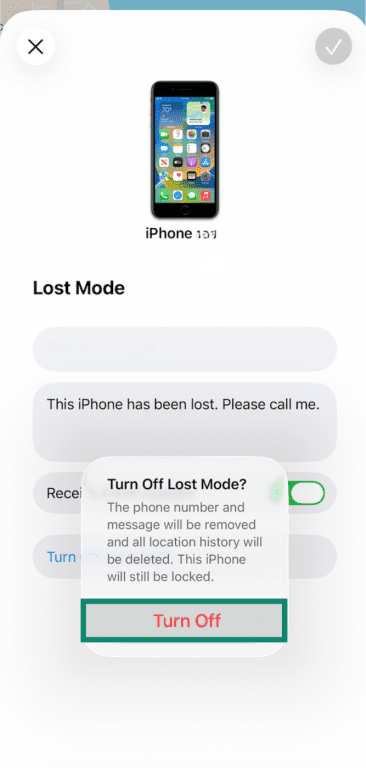
- Tap Turn Off Lost Mode.
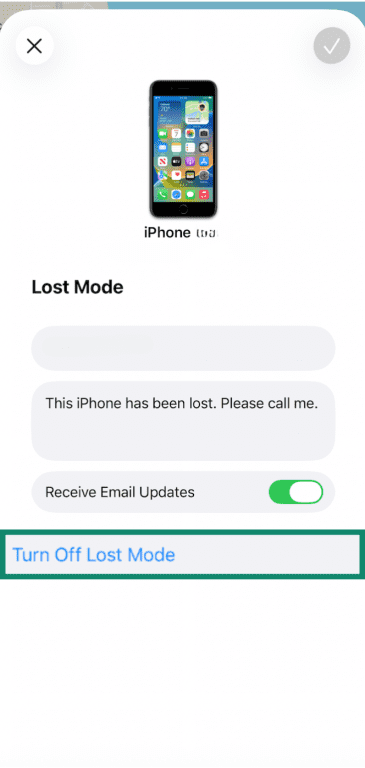
- Tap Turn Off.
Turn off Lost Mode in iCloud Find Devices
If you want to turn Lost Mode off using iCloud, here's how:
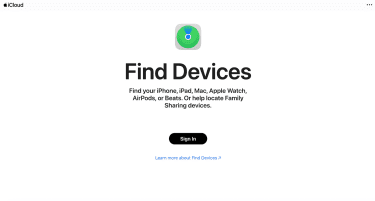
- Go to iCloud.com/find and click on Sign In.
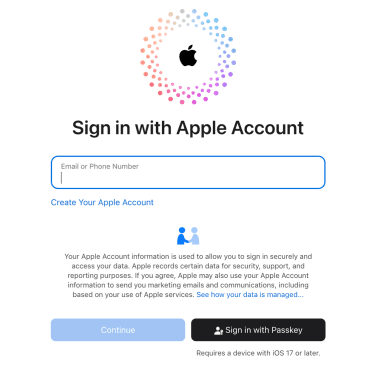
- Log in with your Apple Account.
- Choose your missing iPhone from the list of devices on the left-hand side.
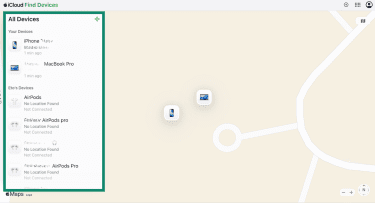
- Click Lost.
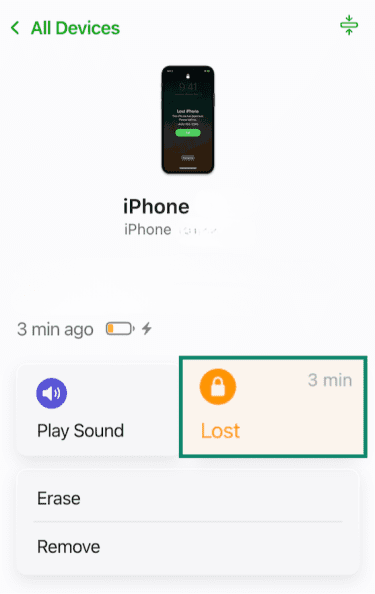
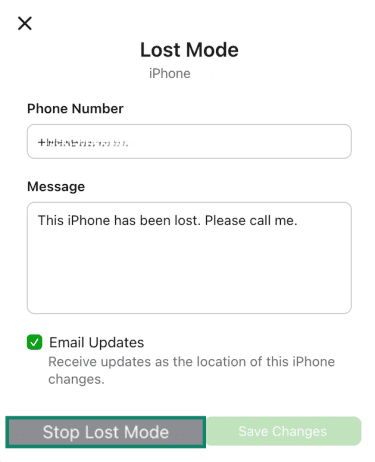
- Then click Stop Lost Mode.
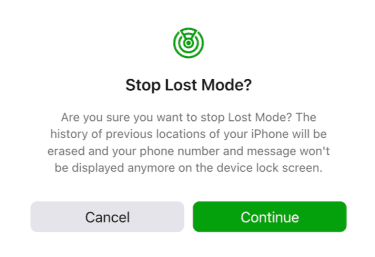
- Click Continue to confirm.
What changes after you turn Lost Mode off
Once you turn off Lost Mode, your iPhone goes back to its normal state. The custom message and contact info no longer display on the lock screen.
If Apple Pay cards, transit cards, or other Wallet items were suspended when Lost Mode was enabled, you can use them again. Your device also resumes showing notifications and alerts as usual.
Limitations of Lost Mode
While Lost Mode can help you protect and locate your iPhone, it doesn't remove every risk or guarantee recovery. Knowing its limitations can help you understand what Lost Mode can and cannot do if your iPhone goes missing.
Internet connection requirements
Your iPhone must be connected to Wi-Fi or cellular data for Lost Mode to activate. If the device stays offline or someone removes the SIM card, Lost Mode remains pending and won’t fully activate until it reconnects.
Battery and power reserve limitations
If your iPhone runs out of battery, it cannot send location updates when you enable Lost Mode.
It may still show its last known location from before it powered off. If the Find My network feature was enabled, the device may also be detectable by nearby Apple devices even while offline.
Without power, Lost Mode remains pending and will fully activate once the iPhone turns back on and reconnects to the internet.
Find My must be enabled in advance
Lost Mode cannot work unless Find My was turned on before your iPhone went missing. If Find My was off when the device was lost, you cannot mark the device as lost, view its location, or play a sound.
Best next steps if your iPhone is stolen
If your device is stolen and you don’t expect you’ll be able to recover it, there are several steps you should take.
Change important passwords
This is an essential step to take if you can’t enable Lost Mode. Start by securing your most sensitive accounts. Change your Apple Account password so thieves can’t access your iCloud data, messages, photos, or other linked services.
Also update passwords for your email, banking, social media, and any other accounts on the stolen iPhone. Consider using a password manager like ExpressKeys to generate and securely store strong, unique passwords for each account. Updating these passwords helps block unauthorized access to your personal information.
Report the device as stolen
Report the theft to your local law enforcement agency. Police may ask for your iPhone’s serial number, which you can find in your Apple Account settings even if you no longer have the device.
Then contact your mobile carrier and let them know your iPhone was stolen so they can suspend your service and block the device from making calls or using data.
File a claim with AppleCare+ Theft and Loss
If you have AppleCare+ with Theft and Loss coverage, you may be eligible for a replacement iPhone after it’s stolen. To start the process, file a claim through the AppleCare Theft and Loss Coverage website and keep Find My iPhone enabled until your claim is resolved.
Erase your iPhone remotely
If you’ve tried everything to locate your iPhone and you’re sure you won’t recover it, consider erasing the device remotely using the Find My app or iCloud Find Devices. This will permanently delete all your personal data, such as photos, messages, and apps, and reset the device to its factory settings. This action can’t be undone.
Even after the device is erased, it will remain linked to your Apple Account through a feature called Activation Lock (turned on automatically when you enable Find My). This means no one else can set up or use your iPhone.
Important: Don’t remove the device from Find My after erasing it. If you do, Activation Lock will be turned off, making it possible for someone else to unlock, use, or resell the phone.
FAQ: Common questions about iPhone Lost Mode
What information is displayed in Lost Mode?
Is Lost Mode the same as Find My?
Can someone unlock my iPhone in Lost Mode?
How do you turn off Lost Mode on an iPhone?
What do I do if I can’t access my iCloud account to turn on Lost Mode?
Will Lost Mode erase my personal data on the iPhone?
What happens if my iPhone is offline when I enable Lost Mode?
Does Lost Mode stop Apple Pay and Wallet cards?
Take the first step to protect yourself online. Try ExpressVPN risk-free.
Get ExpressVPN