How to turn off Find My iPhone: Step-by-step guide


Turning off Find My iPhone is part of preparing a device for transferring ownership of the device, switching Apple IDs, or sending it in for repair. Because the feature is built into Apple’s security system, you should understand what changes when you disable it.
Many people also use it to share their location with friends or family, and may want to stop sharing with specific contacts without turning the feature off completely.
In this guide, we’ll show how to disable Find My iPhone on your device or through iCloud, what to try if the option to disable it is grayed out, and what happens after you turn it off.
How to turn off Find My iPhone on your device
Turning off Find My iPhone on the device is the most direct approach (but you can also turn it off via your iCloud account). When you try to disable the feature, the device requires your Apple ID password because turning it off removes Activation Lock, which is a major security feature.
Turn off Find My iPhone
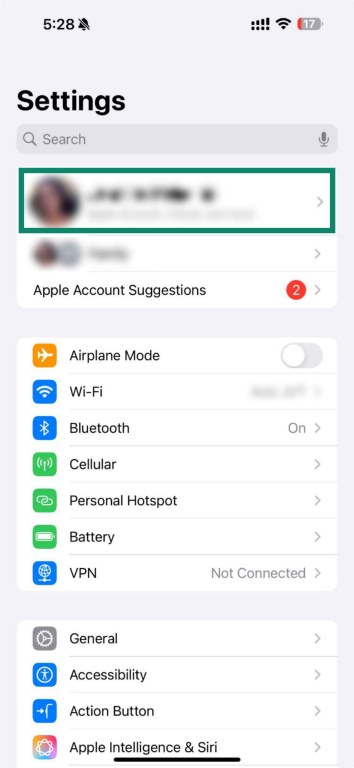
- Open the Settings app, then tap on your Apple ID at the top of the screen to open your Apple Account settings.
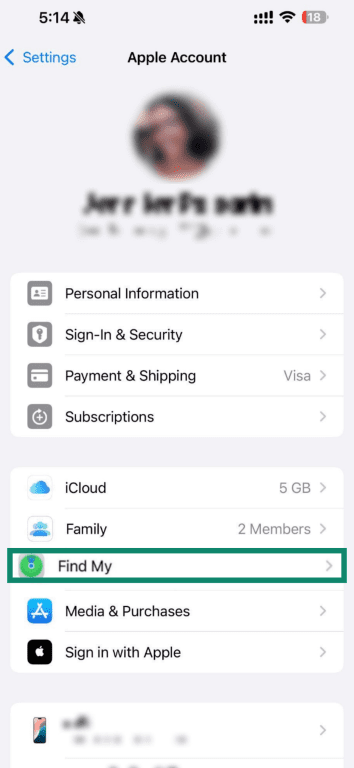
- Open Find My.
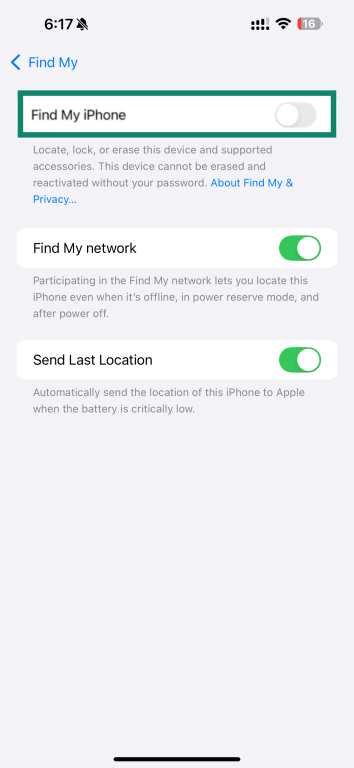
- Tap Find My iPhone and turn off the Find My iPhone toggle. Enter your Apple ID password to confirm. Face ID and Touch ID won’t work for this step, so if you’ve forgotten your password, you’ll need to reset it.
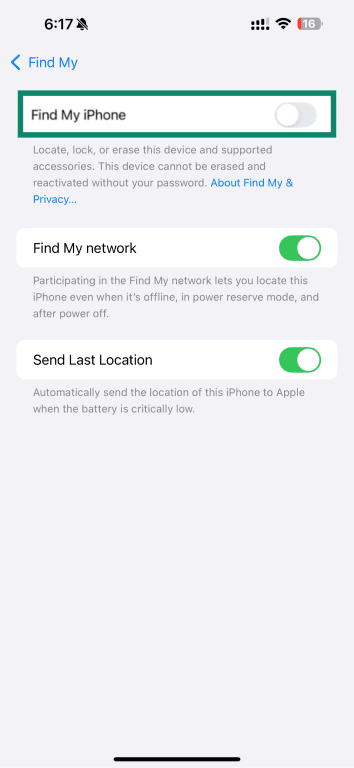
Note: If the toggle is grayed out, see our troubleshooting steps below.
Removing friends and family from Find My iPhone
If you don’t want to turn off Find My iPhone entirely, you can stop sharing your location with specific people.
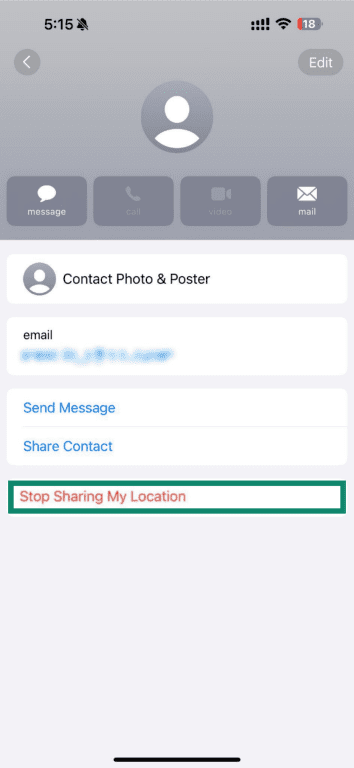
To stop sharing your location with someone, follow steps 1 and 2 above, then:
- Look for the list of people you share your location with. This may appear under Family, People, or within the Share My Location section, depending on your iPhone setup.
Note: You can also hide your location from everyone by toggling the Share My Location switch here.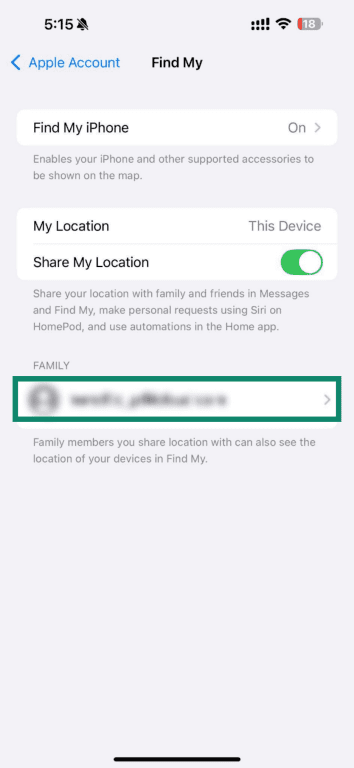
- Select the contact you no longer wish to share your location with.
- Tap Stop Sharing My Location.
Troubleshooting in-app issues
Turning off Find My iPhone is usually straightforward, but some device settings can prevent you from changing your Apple Account or Find My settings.
Fixing grayed-out settings when turning off Find My iPhone
If the Find My iPhone toggle is grayed out, the most common reason is Stolen Device Protection, which can block the Find My iPhone toggle.
To turn off Stolen Device Protection:
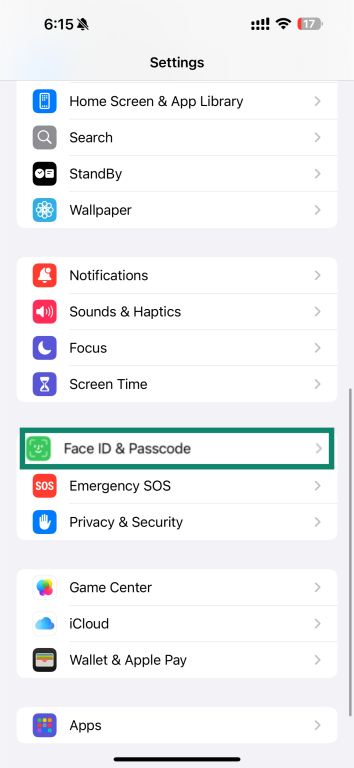
- Go to Settings and tap Face ID & Passcode.
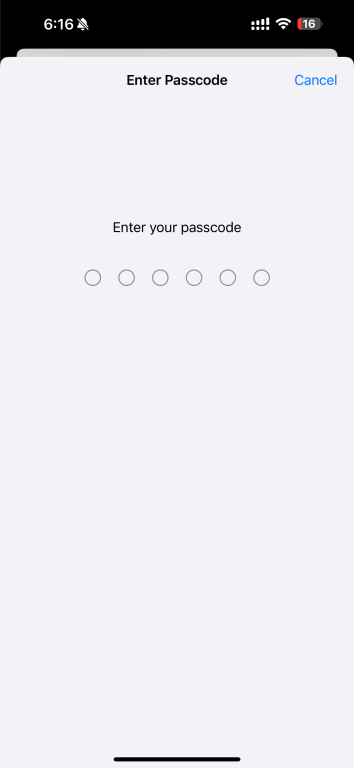
- Enter your device passcode.
- Turn Stolen Device Protection off and confirm with your Apple ID password.
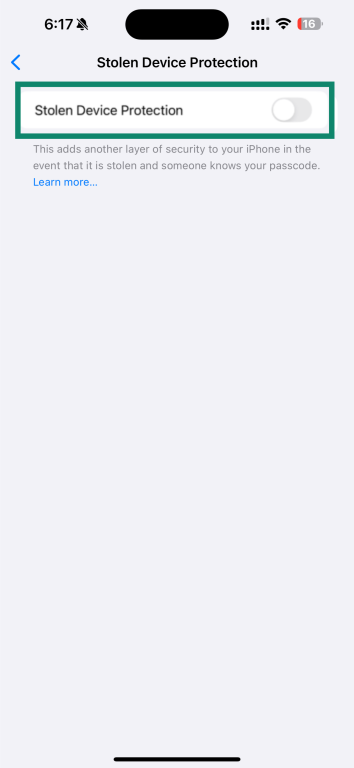
- Once Stolen Device Protection is off, return to the Find My settings and try again.
If you can’t access your Apple Account Settings at all, it’s worth looking at your Screen Time protections. Screen Time restrictions are usually set by parents on a child’s device, so most adults won’t see them unless the phone has been managed previously.
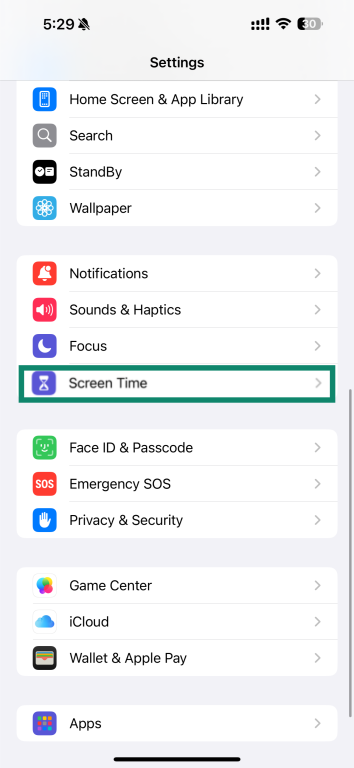
- Go to Settings, then tap Screen Time.
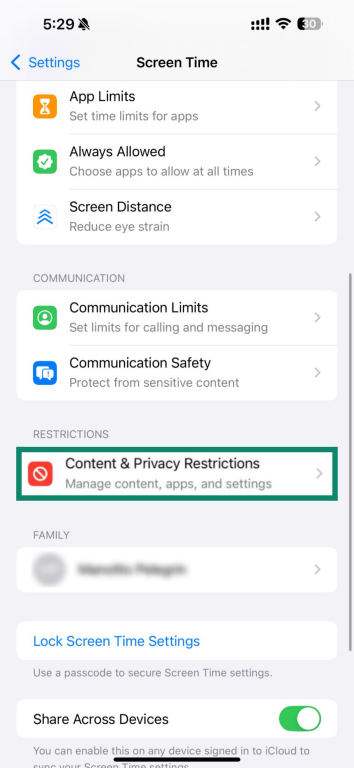
- Tap Content & Privacy Restrictions.
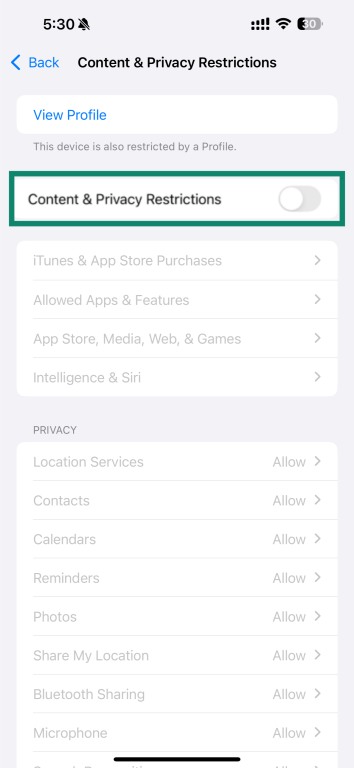
- Turn off Content & Privacy Restrictions. You may need your Screen Time passcode. For parents, be aware that disabling this removes any limits set through Screen Time, including changes to account settings, app use, and privacy controls.
- Return to Settings, open your Apple ID, then select Find My and check the toggle again.
How to turn off Find My iPhone remotely
If the iPhone is locked, unresponsive, or you can’t reach the Settings app, you can turn off Find My iPhone through your iCloud account on a computer or another device.
Using iCloud on another device
You can log into your iCloud account using a browser or from the Find My app on another Apple device.
- Go to iCloud.com/find and sign in with your Apple ID.
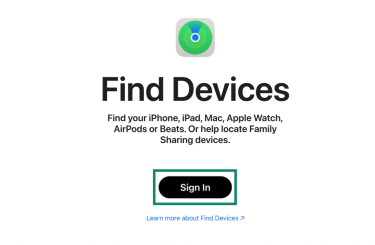
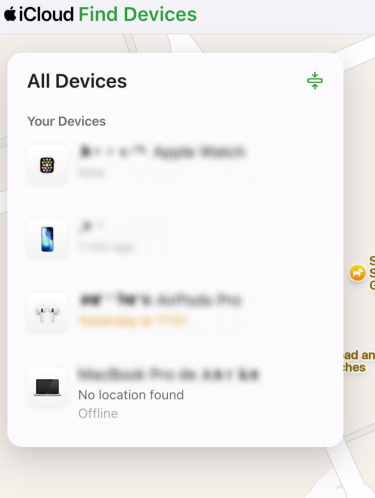
- If two-factor authentication (2FA) is enabled, choose a trusted device or select the SMS option to receive the code. Once Find Devices opens, check the list and select the device you want to remove.
- On the device page, you’ll see both Erase and Remove. Erase deletes the data on the device, while Remove takes the device off your Apple ID. Tap Remove and confirm your selection (in some cases, you’ll be asked to enter your Apple account password again).
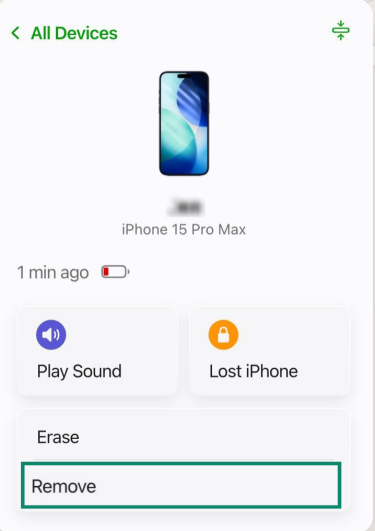
Note: If the iPhone is listed as offline, you can still follow these steps. Activation lock will be turned off immediately and the device will be removed from the Find My network after 30 days. If the device goes back online before 30 days are over, Activation Lock will be turned back on, and you’ll have to go through the steps to remove it again.
Can a VPN help you turn off Find My iPhone?
A virtual private network (VPN) can’t turn off Find My iPhone. Find my iPhone is managed by your device’s built-in security tools and your Apple ID, and Apple always requires the account password to make any changes.
A VPN only affects your network traffic, not the system-level settings. It uses encrypted tunnels to protect your connection.
For more information on how these connections work, see our guide to secure VPN technology and protocols.
What happens after you turn off Find My iPhone?
Turning off Find My iPhone changes how your device handles security and ownership. When you disable it, Activation Lock is removed from that device, which means the phone is removed from your account.
This step is required before selling, trading in, or giving away a device. If you don’t turn Find My iPhone off, the device remains locked to your Apple ID, and only you can turn off Find My, erase the device, or reactivate and use it.
Turning off Find My also completely removes the device from the Find My network. This means that no one (not even you) will be able to see the location of your device on a map. However, you don’t have to turn off Find My entirely to stop sharing your location. You can stop sharing your location with friends and family from the Find My settings separately.
FAQ: Common questions about how to turn off Find My iPhone
How do I turn off Find My iPhone without a password?
Find My iPhone cannot be turned off without the Apple ID password because the feature is tied directly to Activation Lock. Apple uses this requirement to prevent anyone from disabling tracking or unlinking the device without the owner's authorization.
If you’ve forgotten your password, the only solution is to recover or reset your Apple ID through Apple’s account recovery process. After that’s complete, you’ll be able to turn off Find My iPhone.
Can you still track your iPhone after deactivation?
No, because once Find My iPhone is turned off, the device stops sending location information to Apple. It disappears from the list of devices in the Find My app and on iCloud.com, and features like Lost Mode and remote erase are no longer available.
If you’re turning off Find My iPhone for privacy reasons and not transferring the device, the phone remains fully usable; it simply won’t appear in your Find My list or support remote tracking and security features.
Why is Find My iPhone grayed out?
A grayed-out Find My iPhone setting can happen when Stolen Device Protection is turned on, which prevents changes to security features tied to your Apple ID.
How do I turn off Find My iPhone before a trade-in?
Before a trade-in, you can turn off Find My iPhone from the Find My iPhone menu inside your Apple ID settings. Open Settings, select your Apple ID, choose Find My, and turn off Find My iPhone. Enter your Apple ID password to confirm. Once the feature is off, Activation Lock is removed and the device can be prepared for trade-in.
Can I disable Find My iPhone using another iPhone or iPad?
Find My iPhone can be disabled remotely from another Apple device that shares the same Apple ID. Using the Find My app or iCloud, you can remove the iPhone from your account, which removes Activation Lock once the device goes online.
Can I remove my iPhone from my iCloud Account remotely?
It is possible to remove an iPhone from an iCloud account remotely. When the device is removed from the account, Activation Lock is turned off as part of Apple’s standard security process. If the iPhone is offline, the removal will complete the next time it connects to the internet.
What happens to my data after turning Find My iPhone off?
Turning off Find My iPhone doesn’t affect the data stored on the device. Photos, apps, and personal files remain exactly as they were. The change only removes the association between your Apple ID and the device. Data is erased only when the device is wiped manually using the erase function in the system settings.
How does Activation Lock work?
Activation Lock works by associating your iPhone with the Apple ID used during setup. This means that the only person who can erase, reactivate, and use the device is the person with the associated Apple ID credentials.
Are there privacy risks when disabling Find My iPhone?
No. Turning off Find My iPhone doesn’t create new privacy risks. It only removes the device from Apple’s tracking network, so you can no longer locate it, use Lost Mode, or erase it remotely.
The risk of turning off Find My is a security risk. Once Activation Lock is turned off, anyone with physical access to your device could erase and set up the phone with a new Apple ID.
Take the first step to protect yourself online. Try ExpressVPN risk-free.
Get ExpressVPN